Count of Intakes for Past 365 Days With Specified Dx

We need the total number of new (the past 365 days) intakes that were given a primary or secondary diagnosis of 304.4, including sub-diagnoses. In addition to the grand total, we also would like a breakdown by provider.

The following query demonstrates some simple date arithmetic in the WHERE clause to provide a dynamic calculation of the date 365 days ago. In addition, we are using the GROUP BY ROLLUP ( … ) structure to get both the grand total and the subtotals in the same result set. When you run the query you will see a top row where NULL appears in the provider and provcode columns. In this context, whereever you see NULL, it actually should be interpreted as “all”. The first row then shows the number of intakes for “all providers” and “all provcodes,” in other words, the grand total.

SELECT
  UPPER(provlname) + ', ' + provfname AS "Provider",provcode, COUNT(DISTINCT pt.ptnum) as "N"
FROM
  sos.patients pt
  JOIN sos.ptcsu csu ON pt.ptnum = csu.ptnum
  JOIN sos.ptcsudx ptdx ON csu.ptcsunum = ptdx.ptcsunum
  JOIN sos.providers prv ON pt.providernum = prv.providernum
WHERE
  (pt.intakedate >= (TODAY()-365))
  AND (dxcode1 LIKE '304.4%' OR dxcode2 LIKE '304.4%')
GROUP BY
  ROLLUP ("Provider",provcode)
Balance Breakdown By Patient On Specified Date

 Our auditors have requested a report of outstanding balances per client, as of Dec 31, 2011, separated by liability (Medicare, Medicaid, private insurance and self-pay). Insurance type is specified by “Coverage Type” on the Additional tab of the Insurance Carrie/Plan. We want to report patients in either the Active or Inactive lists, as long as they have a balance of some kind at the end of 2011.

Because we are looking for balances on a previous date, we have to tally up all the charges and payments on or before that date, then subtract the latter from the former to find the balance. To do that will require a bunch of embedded subqueries as you can see in the query below. If you want to run the query for a different date, be sure to replace ALL the instances of ‘2011-12-31’!

The output specified in this example will go to an HTML format file called AUDIT2011.HTML located in the C:\SOS folder. You can output the results to screen for inspection before outputting to file by inserting two dashes or slashes at the beginning of the last line. Just remove those characters when you are ready to generate the file. The benefit of outputting in HTML format is that you can view the results in a web browser, or open the file with Excel for additional massaging.

SELECT
   a.lastname, a.firstname, a.id AS "Account ID",
   -- Medicare
   COALESCE((SELECT SUM(chgsplamt) 
   FROM sos.jchgsplits chs JOIN sos.ptpayors ptp ON chs.ptpayornum = ptp.ptpayornum JOIN sos.carriers car ON ptp.payornum = car.payornum
   WHERE chs.ptnum = a.ptnum AND car.coverage = 'C' AND chs.chgspldate <= '2011-12-31'),0) AS "Medicare Charges",
   COALESCE((SELECT SUM(crsplamt) 
   FROM sos.jcrsplits crs 
     JOIN sos.jchgsplits chs ON crs.chgsplnum = chs.chgsplnum 
     JOIN sos.ptpayors ptp ON chs.ptpayornum = ptp.ptpayornum 
     JOIN sos.carriers car ON ptp.payornum = car.payornum 
     JOIN sos.jcredits cre ON crs.jnum = cre.jnum 
     JOIN sos.journal jou ON cre.jnum = jou.jnum
   WHERE chs.ptnum = a.ptnum 
     AND car.coverage = 'C' 
     AND chs.chgspldate <= '2011-12-31' 
     AND jou.trandate <= '2011-12-31') ,0) AS "Medicare Credits",
   ("Medicare Charges" - "Medicare Credits") AS "Medicare Balance",
  -- Medicaid
   COALESCE((SELECT SUM(chgsplamt) 
   FROM sos.jchgsplits chs JOIN sos.ptpayors ptp ON chs.ptpayornum = ptp.ptpayornum JOIN sos.carriers car ON ptp.payornum = car.payornum
   WHERE chs.ptnum = a.ptnum AND car.coverage = 'D' AND chs.chgspldate <= '2011-12-31'),0) AS "Medicaid Charges",
   COALESCE((SELECT SUM(crsplamt) 
   FROM sos.jcrsplits crs 
     JOIN sos.jchgsplits chs ON crs.chgsplnum = chs.chgsplnum 
     JOIN sos.ptpayors ptp ON chs.ptpayornum = ptp.ptpayornum 
     JOIN sos.carriers car ON ptp.payornum = car.payornum 
     JOIN sos.jcredits cre ON crs.jnum = cre.jnum 
     JOIN sos.journal jou ON cre.jnum = jou.jnum
   WHERE chs.ptnum = a.ptnum 
     AND car.coverage = 'D' 
     AND chs.chgspldate <= '2011-12-31' 
     AND jou.trandate <= '2011-12-31' ) ,0) AS "Medicaid Credits",
   ("Medicaid Charges" - "Medicaid Credits") AS "Medicaid Balance",
   -- Private Ins 
   COALESCE((SELECT SUM(chgsplamt) 
   FROM sos.jchgsplits chs JOIN sos.ptpayors ptp ON chs.ptpayornum = ptp.ptpayornum JOIN sos.carriers car ON ptp.payornum = car.payornum
   WHERE chs.ptnum = a.ptnum AND car.coverage NOT IN ('C','D') AND chs.chgspldate <= '2011-12-31'),0) AS "Private Ins Charges",
   COALESCE((SELECT SUM(crsplamt) 
   FROM sos.jcrsplits crs 
     JOIN sos.jchgsplits chs ON crs.chgsplnum = chs.chgsplnum 
     JOIN sos.ptpayors ptp ON chs.ptpayornum = ptp.ptpayornum 
     JOIN sos.carriers car ON ptp.payornum = car.payornum 
     JOIN sos.jcredits cre ON crs.jnum = cre.jnum 
     JOIN sos.journal jou ON cre.jnum = jou.jnum
   WHERE chs.ptnum = a.ptnum 
     AND car.coverage NOT IN ('C','D') 
     AND chs.chgspldate <= '2011-12-31' 
     AND jou.trandate <= '2011-12-31' ) ,0) AS "Private Ins Credits",
   ("Private Ins Charges" - "Private Ins Credits") AS "Private Ins Balance",
   -- Self-Pay
   COALESCE((SELECT SUM(chgsplamt) 
   FROM sos.jchgsplits chs JOIN sos.ptpayors ptp ON chs.ptpayornum = ptp.ptpayornum JOIN sos.payors pay ON ptp.payornum = pay.payornum
   WHERE chs.ptnum = a.ptnum AND pay.payortype IN ('P','O') AND chs.chgspldate <= '2011-12-31'),0) AS "Self-Pay Charges",
   COALESCE((SELECT SUM(crsplamt) 
   FROM sos.jcrsplits crs 
     JOIN sos.jchgsplits chs ON crs.chgsplnum = chs.chgsplnum 
     JOIN sos.ptpayors ptp ON chs.ptpayornum = ptp.ptpayornum 
     JOIN sos.payors pay ON ptp.payornum = pay.payornum
     JOIN sos.jcredits cre ON crs.jnum = cre.jnum 
     JOIN sos.journal jou ON cre.jnum = jou.jnum
   WHERE chs.ptnum = a.ptnum 
     AND pay.payortype IN ('P','O') 
     AND chs.chgspldate <= '2011-12-31' 
     AND jou.trandate <= '2011-12-31' ) ,0) AS "Self-Pay Credits",
   ("Self-Pay Charges" - "Self-Pay Credits") AS "Self-Pay Balance"

FROM 
  sos.patients a  
WHERE
  "Medicare Balance" <> 0
  OR "Medicaid Balance" <> 0
  OR "Private Ins Balance" <> 0
  OR "Self-Pay Balance" <> 0
ORDER BY
  a.lastname, a.firstname, a.id


Insurance Carriers with Active Patients

In order to clean up my list of insurance carriers in SOS I would like to list all active Insurance Carrier’s/ Plans (defined as insurances with Patients tied to them) with their Address, Phone number, and NEIC Numbers. Actually I would like this list with just the count of active patient accounts, and a second list that includes the patients linked to each carrier.

This request is a little vague in that it is not clear whether the linked patients should be restricted to active patients or not. The first query assumes that it is only carriers linked to active patients (in the Active Patient List and without a discharge date), but you can just remove the flag and dischargedate conditions in the WHERE clause to get carriers linked to any patient.

SELECT
  c.payorname AS "Ins Plan",
  COUNT(a.ptnum) AS "ActivePatientCount",
  c.PayorNum,
  d.companynum AS "NEIC#",
  c.Addr1,
  c.Addr2,
  c.City,
  c.State,
  c.Zip,
  c.Phone1Desc,
  (c.phone1area+'-'+phone1) AS "Phone1",
  c.Phone2Desc,
  (c.phone2area+'-'+phone2) AS "Phone2",
  c.Phone3Desc,
  (c.phone3area+'-'+phone3) AS "Phone3"
FROM
  sos.patients a
  JOIN sos.ptpayors b ON a.ptnum = b.ptnum
  JOIN sos.payors c ON b.payornum = c.payornum
  JOIN sos.carriers d ON c.payornum = d.payornum
WHERE
  a.flag = 0
  AND a.dischargedate IS NULL
  AND c.payortype = 'I'
GROUP BY
  "Ins Plan",c.payornum,"NEIC#",c.Addr1, c.Addr2, c.City, c.State, c.Zip,c.Phone1Desc,"Phone1",c.Phone2Desc,"Phone2",c.Phone3Desc,"Phone3"
HAVING
  "ActivePatientCount" > 0
ORDER BY
  c.payorname, c.payornum

The second query removes the COUNT function, the GROUP BY and HAVING clauses, and adds the patient names and ID’s.

SELECT
  c.payorname AS "Ins Plan",
  c.PayorNum,
  (UPPER(a.lastname)+', '+a.firstname+' / '+a.id) AS "Patient Name/ID",
  d.companynum AS "NEIC#",
  c.Addr1 AS "InsAddr1",
  c.Addr2 AS "InsAddr2",
  c.City AS "InsCity",
  c.State AS "InsState",
  c.Zip AS "InsZip",
  c.Phone1Desc AS "InsPhone1Desc",
  (c.phone1area+'-'+phone1) AS "Phone1",
  c.Phone2Desc AS "InsPhone2Desc",
  (c.phone2area+'-'+phone2) AS "Phone2",
  c.Phone3Desc AS "InsPhone3Desc",
  (c.phone3area+'-'+phone3) AS "Phone3"
FROM
  sos.patients a
  JOIN sos.ptpayors b ON a.ptnum = b.ptnum
  JOIN sos.payors c ON b.payornum = c.payornum
  JOIN sos.carriers d ON c.payornum = d.payornum
WHERE
  a.flag = 0
  AND a.dischargedate IS NULL
  AND c.payortype = 'I'
ORDER BY
  c.payorname, c.payornum


Flyspeed SQL Query: Getting Started

Flyspeed is a general purpose query tool that is compatible with SOS’s Sybase SQL Anywhere database, as well as most other popular databases, such as Microsoft SQL Server. It provides structure that will be welcome to those who are new to SQL, as well as to those who are SQL experts.  Flyspeed is free, but if you would like to print or export the results of your queries you will have to purchase a $29 license. See http://www.activedbsoft.com/overview-querytool.html for more details.

Once you have your copy of Flyspeed, just follow these steps to get started:

  1. Make sure that you have followed the instructions in http://www.sosoft.com/queries/how2010/ or http://www.sosoft.com/queries/how2009/ (depending on the version of SOS you are using). Do a simple query using the SOS-provided DBISQL utility to be sure everything is working: SELECT * FROM PATIENTS for example.
  2. Now start up Flyspeed.
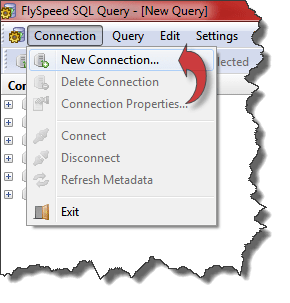
  3. Select Connection > New Connectionfrom the menu at the top of the screen to launch the New Connection Wizard.SNAGHTML12d8e21
  4. On the Database Server window, select “Generic ODBC Connection” as the Connection Type. For SQL Syntax, select “Sybase”. A third field, Server version, will appear. Make sure it says “Sybase ASA” (NOT “Sybase ASE”), then click Next.SNAGHTML15be018
  5. On the Connection properties window, select the first option, System/User DSN, and type or select SOSDATA. If you are on a secure workstation, you can add your SOS login ID and, optionally, password so that you can connect without having to enter your credentials each time. Be sure to type your password in all UPPERCASE. If, and only if, your workstation is secure and not located in a public area, you may check the Save password option. Click Next.SNAGHTML137cc2a
  6. Finally, give the connection a name, such as “SOS”, and click Finish. You will see your connection listed in the pane on the left. Click the little plus to the left of the connection name to expand it. You will see a folder in which you can save your queries and other folders containing all the base tables and views in the SOSDATA database. If at some point you want to query other databases you may have on your network, they can be added in a similar fashion. In the screenshot below you will see several of the other databases running here at SOS in the list.SNAGHTML1453baf
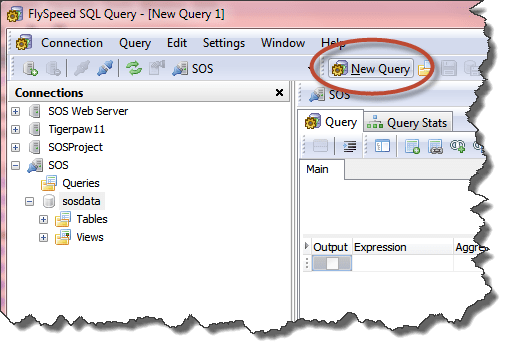
  7. To start working on your first query, click the New Querybutton in the toolbar at the top.SNAGHTML148d2a0
  8. Next, click the Add Objectbutton in the toolbar to select the tables, views, or both for your query. Ignore the system objects and scroll right until you see items that you recognize, starting with “AdjustX” (adjustment explanations) in the tables, and “AGINGBYSORTCODE” in the views. As soon as you select the first one, you will see your query start to take shape in the worksheet. If you add more than one object (table or view), drag from a field in one object to the appropriate field in a second object to create a JOIN to link the two. You can change the type of JOIN by right-clicking on the line that will appear between the two objects.SNAGHTML14e03edSNAGHTML154d889
  9. Click the checkboxes next to the columns/fields you want to output in your query, and configure your filter conditions in the middle pane of the worksheet.
  10. To run your query, click the Execute button just above the worksheet — the one with the lightning bolt icon.

That should be enough to get you started. There is no way for you to damage the database, so feel free to experiment.

Flyspeed SQL Query: How to configure your SOSDATA connection

Flyspeed is a general purpose query tool that is compatible with SOS’s Sybase SQL Anywhere database, as well as most other popular databases, such as Microsoft SQL Server. It provides structure that will be welcome to those who are new to SQL, as well as to those who are SQL experts.  Flyspeed is free, but if you would like to print or export the results of your queries you will have to purchase a $29 license. See http://www.activedbsoft.com/overview-querytool.html for more details.

Once you have your copy of Flyspeed, just follow these steps to get started:

  1. Make sure that you have followed the instructions in http://www.sosoft.com/queries/how2010/ or http://www.sosoft.com/queries/how2009/ (depending on the version of SOS you are using). Do a simple query using the SOS-provided DBISQL utility to be sure everything is working: SELECT * FROM PATIENTS for example.
  2. Now start up Flyspeed.
  3. Select Connection > New Connection from the menu at the top of the screen to launch the New Connection Wizard.

    SNAGHTML12d8e21

  4. On the Database Server window, select "Generic ODBC Connection" as the Connection Type. For SQL Syntax, select "Sybase". A third field, Server version, will appear. Make sure it says "Sybase ASA" (NOT "Sybase ASE"), then click Next.

    SNAGHTML15be018

  5. On the Connection properties window, select the first option, System/User DSN, and type or select SOSDATA. If you are on a secure workstation, you can add your SOS login ID and, optionally, password so that you can connect without having to enter your credentials each time. Be sure to type your password in all UPPERCASE. If, and only if, your workstation is secure and not located in a public area, you may check the Save password option. Click Next.

    SNAGHTML137cc2a

  6. Finally, give the connection a name, such as "SOS", and click Finish. You will see your connection listed in the pane on the left. Click the little plus to the left of the connection name to expand it. You will see a folder in which you can save your queries and other folders containing all the base tables and views in the SOSDATA database. If at some point you want to query other databases you may have on your network, they can be added in a similar fashion. In the screenshot below you will see several of the other databases running here at SOS in the list.

    SNAGHTML1453baf

  7. To start working on your first query, click the New Query button in the toolbar at the top.

    SNAGHTML148d2a0

  8. Next, click the Add Object button in the toolbar to select the tables, views, or both for your query. Ignore the system objects and scroll right until you see items that you recognize, starting with "AdjustX" (adjustment explanations) in the tables, and "AGINGBYSORTCODE" in the views. As soon as you select the first one, you will see your query start to take shape in the worksheet. If you add more than one object (table or view), drag from a field in one object to the appropriate field in a second object to create a JOIN to link the two. You can change the type of JOIN by right-clicking on the line that will appear between the two objects.

    SNAGHTML14e03ed

    SNAGHTML154d889

  9. Click the checkboxes next to the columns/fields you want to output in your query, and configure your filter conditions in the middle pane of the worksheet.

That should be enough to get you started. There is no way for you to damage the database, so feel free to experiment.