Moving SOS 2010 through 2016 to a New Server

System requirements and recommendations

Moving SOS is not difficult, not even when migrating to a new server. Before committing to new hardware, however, you might want to review the system requirements and recommendations for the current generation of SOS (Releases 2010 through 2015), as well as what we anticipate going forward to the next generation of SOS.

The current software should run fine on most any current Windows desktop or laptop PC used as a network workstation or as a standalone SOS implementation for a small practice. Scaling would normally be just a matter of adding more RAM. Server requirements will vary depending on the roles running on the system, the size of the SOS database, and the number of simultaneous users. For specific details and recommendations, please see the following document:

https://sos-resources.info/g4/210-system-recommendations-for-sos-2010-and-later/

Next, you might want to consider future requirements, as SOS 2016 is expected to be the final version using the current technology. It will be followed by completely re-written, modern software running on the Microsoft .Net platform. You will be able to deploy this new generation of SOS as a local standalone application, a local client-server installation (similar to the current software), a web-based application running on a web server on your own local network, or alternatively, running on a cloud infrastructure service such as Microsoft Azure or Amazon EC2. You will also be able to run a mix of locally-installed Windows software and users accessing the web-based software. It is expected that virtually all multi-user deployments will be as web-based software because of the relative simplicity of deployment and management, and the potential to run the software in a modern web browser on most any computer or tablet. For more information, please see:

https://sos-resources.info/g5/system-requirements-for-next-generation-sos-products/


Moving the current software to a new computer

Turning to the matter of moving the current software to new hardware, here is a step by step guide:

  1. Install the SOS software on the new computer, using your most recent CD, or using a complete installer (not a patch/update) downloaded from the SOS web site’s Download Files page.  It should be the same version or newer than the one you are currently using on the old computer.  (There is no need to install any earlier versions or CD’s.) If you have a current support contract, the installer for the current release is usually available on the SOS web site. If you must go from your current version to a newer version on the new computer (such as SOS 2009 on the old computer to SOS 2010 or later on the new computer, you must also upgrade the version of the database engine, making the process more complex. Contact SOS support for guidance.

  2. Ideally, you should then back up the entire SOS folder on the old computer, including all sub-folders. Backing up the entire SOS folder will assure that you will be moving the entire set of files, including any updates or patches that you have downloaded and installed, custom reports, claim files, and any other personal files you may have created and stored there.

  3. Restore the backup on the new computer. Depending on how you did your backup, your restore will be done differently. If you just copied the files to a DVD or USB drive using Windows Explorer, restoring the files is a simple matter of copying from the DVD or USB drive back to the matching folders on the new computer. If you did a backup using backup software like NovaBackup, then your target for the restore should be the appropriate drive letter on the new computer. The folder information is stored in the backup, and when you restore from your tape or other media, the files will be put back in their original folder locations. IMPORTANT: If you copy files from a DVD or CD using Windows Explorer, the copies on the new computer may all be set to “Read-Only” status. When you have finished copying the files, you should highlight all the files in each of the folders and reset the properties to uncheck the Read-Only setting: Highlight the files, right-click for the context menu, then left-click on Properties. Uncheck the Read-Only box under Attributes.
  4. Go into SOS on the new computer to make sure that the data has transferred correctly.  Only after you are certain that the software runs on the new computer and the data is intact should you remove the program from the old computer!

If you are moving a standalone installation or a database server installation, and you are putting the SOS folder in a different location (such as on a different drive letter, or placing it within a different folder on the new system), you may have to reset the transaction log file name embedded in the database during a previous database rebuild operation. If you fail to do so, the database will not start. The steps to reset the log file name appear in the box below:

    1. Open a command prompt window (Start > Run, then enter CMD or COMMAND and click OK).

    2. Change to the \SOS\DATA folder on the appropriate drive. (Type the drive letter followed by a colon and press <enter>, then type CD \SOS\DATA and press <enter>.) The command prompt should now show the correct drive and path, for example:

      C:\SOS\DATA

    3. Enter this command (SOS 2010 or later):

      \SOS\SA\BIN32\DBLOG  -t  SOSDATA.LOG  SOSDATA.DB

    4. This command removes the hard-coded path from the filename so the database will use the SOSDATA.LOG file in the same directory as the database files. You should see something like this:

Uninstalling the SOS Software from the old computer

Once you have confirmed that your new system is working fine and that the data is intact, you must completely remove the SOS applications from your old computer. If you want to backup the entire SOS folder just in case, that is fine, but you cannot leave a run-able copy on the old system. In order to completely remove SOS Office Manager for Windows from your computer, use the Windows Uninstall procedure, remove any SOS folder that remains, and empty the Recycle Bin.  Here are the steps:

  1. In Windows XP: Click on Start > Settings >  Control Panel > Add/Remove Programs.
    In Windows Vista or Windows 7: Click Start >  Control Panel > Programs and Features.
    In Windows 8 - 10: Press the Windows START key on your keyboard,  type control panel then click
    "Programs and Features" (if in Icon view) or click the "Uninstall a program" link under "Programs" 
    (if in Category view).
  2. Scroll down in the box listing your software programs until you find  “SOS Applications”.

  3. Highlight and click on the Remove or Uninstall button (or Right-Click SOS Applications, then select Uninstall).

  4. When you are asked if you are sure you want to completely remove _____ and all its components” click “Yes to All”.  If you are asked for any more verifications of your intention to remove all parts of the program, indicate “Yes”.  When you have finished removing all the SOS applications, close the list window and close Control Panel.

Configuration of the new computer

Database Servers

Edit the SERVER.PRM File in the SOS folder
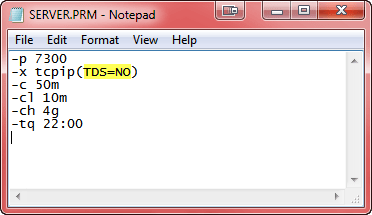
For readability, we suggest you type each parameter on a separate line. Here is an example:

The recommended network packet size for SQL Anywhere 11 (the database engine provided with SOS 2010 through 2016) is 7300 bytes.  Make sure that is specified in your SERVER.PRM by the parameter:

-p 7300

In addition, to close a potential security threat, SOS strongly recommends that you add the parameter “TDS=NO”, in parentheses, after “-x tcpip”. Here is an example:

-p tcpip(TDS=NO;PORT=2638)

The -c, -cl, and -ch relate to the cache size available on the server  to run the software.  The -c parameter sets the amount of cache requested when the database starts up. The -cl parameter sets the lower size limit for the cache. Finally, the -ch parameter sets the maximum amount of RAM the database will use for cache, even if substantially more is available on the host computer. It is acceptable to omit all three settings, allowing the database engine to dynamically adjust the cache size as it sees best, but unless the server is dedicated to just running the database, you may want to set realistic size limits so that other processes won’t have to compete for RAM.

The best and simplest option for getting optimal performance from a large database is to run it on a 64 bit Windows system with an abundance of RAM. Ideally, you would have enough RAM installed in your system so that the entire database can be cached. In that case, allowing a larger cache is simply a matter of increasing the value of the –ch parameter in the SERVER.PRM file located in the SOS folder on your SOS database server computer. If you have, for example, 12 GB of RAM in your 64 bit system, you could allocate 9 GB of that RAM for potential use as database cache by including:

-ch 9g

in the SERVER.PRM file in the SOS folder. Remember, that parameter just sets an upper limit, it does not mean that 9 GB of RAM will be immediately reserved for use by the database. The amount actually used will go up and down in accordance with the amount of unused RAM in the system and the amount the database would like at any given time. In general, an upper limit size similar to the size of all the DB files (*.DB) in the \SOS\DATA folder will give you the best possible performance. Alternatively, in a 64 bit environment you can simply remove the -ch parameter entirely, which allows the database engine to dynamically size the cache based on resources available.

Windows 32 bit platforms are fine for smaller databases, but because they normally limit you to 1.8 GB for database cache, regardless of the amount of physical RAM in the computer, those with larger databases should really be using a 64 bit server.

The -tq switch shuts down the SOS database at a specified time. (Restarting the database once daily is recommended, and you should do your backup while the database is down.) The time is entered as military time.  For example, if you want to shutdown the database at 10:00 PM you would enter…

-tq 22:00

in the SERVER.PRM file.

Delete and Re-create the Database Service

You may have been running your database on your old system as a Windows background service, or perhaps you want to start doing so. The main advantage to running as a service is that the database will start and run whether or not anyone is logged into the server computer’s console. Services created in versions prior to SOS 2010 appear in the Windows Service Manager in the form:

Adaptive Server Anywhere – mysos

where “mysos” is the name you gave to the service when you created it. You must first remove the existing service, if there is one, then create a new one. The new one will appear in the list of services with a name in the form:

SQL Anywhere – mysos

To delete an existing SOS database service:

  1. Open a command window, being careful to use the “Run as administrator”. (That is, type CMD in the Start menu Search field, then right-click CMD.EXE in the search results and select “Run as administrator”.)

  2. Even if you plan to run the 64 bit database engine, change to the \SOS\SA\BIN32 directory:

  3. CD \SOS\SA\BIN32 <enter>

  4. Assuming that the name of your existing service is “mysos”, delete it with this command:

  5. dbsvc –y –d mysos 

To create the new service:

  1. If you are not already in a command window running with Administrator rights, follow steps one and two above.

  2. Now create the new service with the command below.
    The options in this example will set the service to run:

    • under the system account (-sa),
    • as a network service (-t network),
    • to start automatically (-s auto),
    • and to be named “mysos” (-w mysos)

    It will appear in the Windows Services Manager as “SQL Anywhere – mysos”

    If you are running the database in 64-bit Windows, using the 64-bit option is recommended, but either version of the engine will work. The 64-bit engine often provides better performance, especially for larger databases. If you are running in 32-bit Windows, you MUST use the 32-bit command. These commands would be typed on a single line, of course.

    Note: Service configuration commands are case sensitive. Type your options exactly as shown (eg: “automatic” will fail but “Automatic” will work). If you still have trouble getting the service created, leave out the “-s Automatic”. You can change the property to “automatic” from the Services applet after the service has been created.

    32-bit Windows (all on one line):

    dbsvc -as -t Network -s Automatic -w mysos c:\sos\sa\bin32\dbsrv11.exe @c:\sos\server.prm c:\sos\data\sosdata.db

    64-bit Windows (all on one line):

    dbsvc -as -t Network -s Automatic -w mysos c:\sos\sa\bin64\dbsrv11.exe @c:\sos\server.prm c:\sos\data\sosdata.db

  3. After executing the command, you will find a new Windows service listed in Windows’ Administrative Tools > Services applet: SQL Anywhere – mysos. You can adjust the properties for the service just as you would for any other service.

For more detailed discussion and instruction for running SQL Anywhere as a Windows service, see:

Running the SOS SQL Anywhere 11 Database as a Windows Service

Adjust Scheduled Tasks

You may be using one or more Scheduled Tasks in Windows to control starting or stopping your database. Normally stopping the database automatically is handled with a –tq parameter in the SERVER.PRM file, such as:

-tq 22:00

to automatically shut down the database at 10:00 pm, but if running as a service, it is possible that you are using a scheduled NET STOP <your database service name> command to do so. Either way will work fine.

You probably will want to automate restarting the database after your nightly backup, whether you run the database engine as a foreground task, or as a Windows service. Here is an example of both STOP and START commands:

Inspecting the files in the SOS folder, you might find a CMD or BAT file that launches the database. If so, edit the batch file, making any necessary changes. That command file might include a NET START command that doesn’t reference the correct service name. In that event, change the command to start the correct service. The name, of course, should match the name of the service you created above. Check the properties of the new service in your Control Panel > Administrative Tools > Services to be sure of the name. Once you open the Properties dialog for the service, you will see the service name at the top of the first tab, probably in the form “SQLANYs_mysos”. You should be able to use the verbose name in the Services list, as in the example above, or the short name in the Properties dialog. Both should work equally well, though make sure you include quotation marks around the verbose name to prevent issues with the embedded spaces in the string.

Once you have the command corrected, whether it is to start the database service or launch the engine as a foreground application, create a scheduled task in Windows task scheduler to execute the command or command file every morning before staff arrives to work.

IMPORTANT: If you run the database engine as a foreground task, you must not logout of the server console. If you do, the database will shut down. That is another reason to run it as a service in the background.

Network Workstations

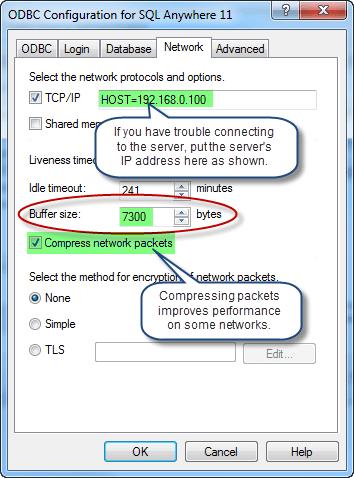
After installing the new version of the software on a network workstation, including a terminal server, check the ODBC settings to be sure that the Buffer Size setting on the Network tab is set to 7300 bytes to match the packet size setting on the server. While on this tab, note that specifying the IP address of your database server as a TCP/IP parameter in the form: HOST=123.123.123.123 (using your own server’s address) is sometimes necessary if the workstation cannot otherwise locate and connect to the database server. Unless you are having a problem, do not specify this parameter. Also on the Network tab is an option to Compress network packets. Using this option can make a significant performance improvement on some networks, but can slow things down on others. If your servers and workstations are relatively speedy, but your network is slow, this option should help. On the other hand, if your server and/or workstations are already working pretty hard, and you have abundant network capacity, checking this option may actually slow things down. You will have to experiment to know for sure. Test by timing the generation of large reports.

Firewall issues are the ones most often responsible for client-server communication problems. Make sure that you open port 2638, which is the one used by the SQL Anywhere engine by default.
Performance Tip: Match Server CPU and RAM to the Number of Users on Your System

RAM

If you call SOS with a complaint about software performance, the first thing a technician will check is the amount of RAM you have configured for the database to use for cache. The larger your cache, the more of your database that can be copied from the relatively slow hard drive to much faster RAM memory, and the faster your database can respond to the software’s requests for data. Insufficient cache because of too little physical RAM in the computer or because of a simple configuration oversight can be deadly, especially for reporting.

CPU

Everyone has had the experience of standing in a long line at a supermarket because there was only one cashier on duty. In most cases, at some point a manager will notice the log-jam and open additional registers. Waiting shoppers quickly spread out among the new cashiers, and in short order the situation is resolved. New shoppers arriving at check-out have little or no wait.

A very similar thing can happen with your SOS database server. Retrieving, adding, updating, and deleting data in SOS all take the form of database queries or commands. Each must be executed in turn, and the execution of these commands requires computing resources – specifically memory and CPU resources — on the server computer.

Recently SOS technicians received a couple of calls from customers who were experiencing poor performance in SOS. In both cases they discovered that the customers had adequate RAM but just one CPU core available on the database server to handle the work being sent to it by between 9 and 30 users. It was therefore no surprise that reports were taking “forever” to run, and that users were complaining about getting “locked up”. In that situation, frustrated users often resort to drastic measures, like rebooting their computers or force-stopping SOS while it is waiting to complete some process that has not run to completion. That just adds to the problem because the database must now also clean up the mess left by the rebooting users. The single CPU core is similar to the one cashier in the supermarket. He or she may be working at top speed, but to the person at the end of the line, it feels like nothing is happening.

For the store, the solution is to add more cashiers. For your SOS database, the solution is to move the database to a computer with more CPU cores. Fortunately, modern computers, even relatively inexpensive ones, typically have at least two to four core CPU’s. More and more frequently you will find computers with advanced processors that allow six or eight processor paths, even if there are only three or four actual CPU cores. The Intel Core i7, for example, is a high-performance, quad-core processor found in many computers in the $700 to $1,000 range, but which provides software with eight parallel execution pathways. In an environment of that kind, thirty to fifty users will rarely find themselves waiting around for very long!

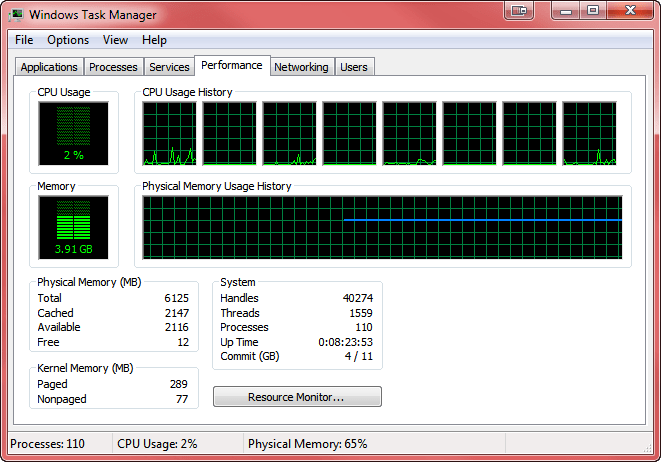
In the screenshot below, showing the Performance tab of Windows Task Manager, you can see the eight parallel processing paths available on an Intel Core i7 CPU:

taskmgrcpu

How Do I Know If I Have One of These Issues?

There is a quick and easy way to check your cache and CPU situation. From the top menu in OM or CM select Help > Version Information, then click the DB tab.

dbtab

Examine the cache values (best done at the end of a busy day). If the peak size is less than the maximum size setting, you have ample cache, at least for now. If the numbers are the same, then it is likely that you would benefit from adding more cache, either by increasing the maximum size setting in your SERVER.PRM file, or if necessary, by adding more RAM to your system (if possible). For more detail about cache settings, see http://www.sosoft.com/fod/doc435-enhancing_perf_large_db.pdf

To see how many CPU execution pathways are available in your computer, check the “Logical Server Processors Available” line. If you see “1/1” here and you have more than two people on your system, you are going to really suffer. Even one person running a standalone copy of SOS can encounter issues in that situation and would see much better computer performance across the board by upgrading to at least a dual-core computer.

Some settings make use of virtual servers that can be configured to use a specified number of the host computer’s CPU cores. Often the default setting for virtual machines is just one processor core, even when the host system has four or more available. If your database is running on a virtual server and SOS shows “1/1” Logical Processors Available, you should adjust the virtual machine settings to allow it to use more of the host computer’s cores.

Database Settings Can Make a Difference

There are two internal database options that can make a significant difference in performance: max_query_tasks and optimization_goal. In most cases, the former should be set to 1, and the latter to “All-rows”. To determine your own settings, check in Reports > Other Reports in OM to see if you have the report “Database Performance Options”. If not, you can download it from here: http://www.sosoft.com/files/downloads/dbperfopts.rpt and install it in the Other Reports menu using these instructions: http://www.sosoft.com/fod/doc474-adding_new_report.pdf.

2-14-2012 5-11-21 PM

If max_query_tasks is not set to 1, you can change it using a tool on the tools menu in DBA Utilities. Using an SOS login with security administrator rights, click the Admin icon on the login window, then go to Database Tools > DBA Utilities. Click Set Max Query Task. That item is a toggle that switches the setting back and forth between 0 and 1. When set to 1 it should display a checkmark next to the menu item, but it is a good idea to confirm the setting with the report and re-toggle if it is not set as you wish.

2-14-2012 5-15-51 PM

There is no utility to reset optimization_goal, but an SOS support tech can establish a remote connection to your system and reset it for you.

Consider a Server that is not a Server

One thing that is important to understand is that it is not necessary to run the database on a computer that says “server” on the box, nor is it necessary to have Windows Server xxxx as the operating system on your SOS database computer. For example, instead of adding an official “server,” you can add a computer running Windows 7 Pro on an Intel Core i7 or similar CPU to your network, install a copy of SOS using the “server” option, move your database over, and fire it up. Remember that it is not recommended that you map the database server’s SOS folder as a network share, so Microsoft’s 10 user limit on non-server versions of Windows is not an issue. Database access over the network is not done with Windows shares and therefore does not count against that limit. You can therefore have dozens of users on the database even though it is running on Windows 7 rather than Server.When upgrading a server is not a possibility for one reason or another, this approach can provide the same results for a fraction of the cost.

Note that if you plan to use your server as both the database server and a terminal server, then you must run a Windows Server operating system (such as Windows Server 2008, or Server 2008 R2). You cannot use Windows 7 as a terminal server.

(#200) Upgrading from SOS 2009 to SOS 2010

The upgrade to SOS 2010 is quite similar to previous SOS upgrades that you may have done. It does, however, replace your older Sybase database components with newer versions. In some cases that change will require a couple of post-installation steps, which are detailed below.

All Installations, Including Network Workstations

You may find that one or two obsolete shortcuts remain in your Windows Start > Programs > SOS Applications menu.


The DBISQLG query utility has been replaced by the new DBISQL (no G at the end). The old program shortcut will no longer work and should be removed from the SOS Applications menu. Similarly, the shortcut to bring up the Sybase documentation now has a slightly different name, Sybase SA Manuals. The old Sybase ASA Manuals shortcuts will no longer work, so that shortcut should also be deleted, to avoid confusion.

To delete a menu shortcut, just right-click the shortcut and then click Delete on the pop-up menu. The two menu entries to be deleted are circled in the figure to the left.

Standalone Computer Installations

In most cases, the installation will make all necessary changes for you, except, possibly, the removal of the now obsolete menu items in the Start > SOS Applications menu.

64 Bit Windows Option

If you are running your software on a 64-bit version of Windows, you can choose to run the 64-bit version of the database engine rather than the default 32-bit version. Although either one will work fine in your environment, if you have more than three GB of RAM in your system, you may experience better performance with the 64-bit engine. Changing from one to the other is quite easy:

  1. Select Start > Programs (or All Programs) > SOS Applications > ODBC Administrator.
  2. Click the System DSN tab.
  3. Double-click SOSDATA.
  4. Click the Database tab.
  5. In the Start line, scroll to the left, so you can see the beginning of the command.
  6. Replace the number 32 with 64. The command will now start with c:\sos\sa\bin64\dbeng11.exe
  7. Click OK to save, then OK again to close the ODBC Administrator applet.

The next time you start SOS, the database will start using the 64-bit engine!

Database Servers

Edit the SERVER.PRM File

In the old version of the Sybase database engine, the recommended network packet size was 1480 bytes. With the new engine, the default and recommended size is 7300 bytes. For best performance, therefore, SOS recommends that you remove the “-p 1480” parameter from your SERVER.PRM file, or change the “1480” to “7300”. In addition, to close a potential security threat, SOS strongly recommends that you add the parameter “TDS=NO”, in parentheses, after “tcpip”. Here is an example:

server_prm

Modify all Database Startup Shortcuts

Prior to the 2010 release, the database engine was called DBSRV9.EXE and was located in \SOS\ASA\Win32. The new database engine is named DBSRV11.EXE and is located in \SOS\SA\BIN32, with the 64-bit version located in \SOS\SA\BIN64. As a result, old shortcuts will no longer work and should be deleted. There is a shortcut in Start > All
Programs > SOS Applications to start the new database server, using the 32-bit engine (Start SOSDATA Server). You should delete any left-over shortcuts and create new ones by copying the one in the Start menu:

If you are running the database on a 64-bit Windows machine with more than 2 GB of RAM, you will probably see better performance by using the 64 bit engine, so after creating the 32-bit shortcut, just edit its properties as shown below, modifying the Target location from BIN32 to BIN64:

Delete and Re-create the Database Service

You may have been running your database as a windows background service, or perhaps you want to start doing so. The main advantage to running as a service is that the database will start and run whether or not anyone is logged into the server computer’s console. Services created in versions prior to SOS 2010 appear in the Windows Service Manager in the form:

Adaptive Server Anywhere – mysos

where “mysos” is the name you gave to the service when you created it. You must first remove the existing service, if there is one, then create a new one. The new one will appear in the list of services with a name in the form:

SQL Anywhere – mysos

To delete the existing service:

  1. Open a command window, being careful to use the Run as administrator option if you are working on Windows 7. Windows 8 and newer, type CMD in the Start menu Search field, then right-click CMD.EXE in the search results and select “Run as administrator”.
  2. Even if you plan to run the 64 bit database engine, change to the \SOS\SA\BIN32 directory:
    CD \SOS\SA\BIN32 <enter>
  3. Assuming that the name of your existing service is “mysos”, delete it with this command:
    dbsvc –y –d mysos

To create the new service:

  1. If you are not already in a command window running with Administrator rights, follow steps one and two above.
  2. Now create the new service with the following command. The options in this example will set the service to run under the system account (-sa), as a network service (-t network), to start automatically (-s auto), to display the database icon in the system tray (-i), and to be named “mysos” (-w mysos). It will appear in the Windows Services Manager as “SQL Anywhere – mysos”. If you are running the database in 64-bit Windows, using the 64-bit option is recommended, but either version of the engine will work. The 64-bit engine often provides better performance, especially for larger databases. If you are running in 32-bit Windows, you MUST use the 32-bit command. These commands would be typed on a single line, of course. Note that the -i option to display the icon in the system tray won’t work on Windows 7, or Server 2008 R2 and later, so omit that option if using one of those. Service configuration commands are case sensitive. Type your options exactly as shown (eg: “automatic” will fail but “Automatic” will work). If you still have trouble getting the service created, leave out the “-s Automatic”. You can change the properties to “automatic” from the Windows Services list after it is created.
    32-bit Windows:
    dbsvc -as -t Network -s Automatic -i -w mysos c:\sos\sa\bin32\dbsrv11.exe @c:\sos\server.prm c:\sos\data\sosdata.db
    64-bit Windows:

    dbsvc -as -t Network -s Automatic -i -w mysos c:\sos\sa\bin64\dbsrv11.exe @c:\sos\server.prm c:\sos\data\sosdata.db
  3. After executing the command, you will find a new Windows service listed in Windows’ Administrative Tools > Services applet: SQL Anywhere – mysos. You can adjust the properties for the service just as you would for any other service.

For more detailed discussion and instruction for running SQL Anywhere as a Windows service, see:

https://sos-resources.info/g4/running-the-sos-sql-anywhere-11-database-as-a-windows-service/

Adjust Scheduled Tasks

You may be using one or more Scheduled Tasks in Windows to control starting or stopping your database. Normally stopping the database is handled with a –tq parameter in the SERVER.PRM file, such as:

-tq 22:00

to automatically shut down the database at 10:00 pm, but if running as a service, it is possible that you are using a scheduled NET STOP command to do so. More likely, however, if you check your Windows Scheduled Tasks, you will find a task that starts your database server engine each morning, whether you run it as a foreground task, or as a Windows service.

If you have a task to execute a CMD or BAT file that launches the database, find and edit the batch file, replacing the old c:\sos\asa\win32\dbsrv9.exe with the new c:\sos\sa\bin32\dbsrv11.exe (or c:\sos\sa\bin64\dbsrv11.exe) command.

If you are restarting a service, that service no longer exists, so change the command to start the correct service. For example, you might have scheduled the command:

NET START “Adaptive Server Anywhere – mysos”

which now should be:

NET START “SQLANYs_mysos”

This name, of course, should match the name of the service you created above. Check the properties of the new service in your Control Panel > Administrative Tools > Services to be sure of the name. Once you open the Properties dialog for the service, you will see the service name at the top of the first tab:

Windows 7 –

6-15-2012 5-05-43 PM

Windows Server 2008 R2 –

6-15-2012 5-08-20 PM

Network Workstations

After installing the new version of the software on a network workstation, including a terminal server, check the ODBC settings to be sure that the Buffer Size setting on the Network tab is set to 7300 bytes to match the packet size setting on the server. While on this tab, note that specifying the IP address of your database server in the form HOST=123.123.123.123 (using your own server’s address) is sometimes necessary if the workstation cannot otherwise locate and connect to the database server. Unless you are having a problem, do not specify this parameter. Also on the Network tab is an option to Compress network packets. Using this option can make a significant performance improvement on some networks, but can slow things down on others. If your servers and workstations are relatively speedy, but your network is slow, this option should help. On the other hand, if your server and/or workstations are already working pretty hard, and you have abundant network capacity, checking this option may actually slow things down. You will have to experiment to know for sure. Test by timing the generation of large reports.

SNAGHTML178e068

Updated 2/26/2009

Extending Cache Size Beyond 1.8GB Using 32 Bit Windows

[This discussion assumes that you are running SOS 2010 or later]

The best and simplest option for getting optimal performance from a large database is to run it on a 64 bit Windows system with an abundance of RAM. Ideally, you would have enough RAM installed in your system so that the entire database could be cached. In that case, allowing a larger cache is simply a matter of increasing the value in the –ch parameter in the STDALONE.PRM or SERVER.PRM file located in the SOS folder on your standalone SOS computer, or your SOS database server computer, respectively. If you have, for example, 12 GB of RAM in your 64 bit system, you could allocate 10 GB of that RAM for potential use as database cache by including:

-ch 10g

in your PRM file.

Windows 32 bit platforms, however, normally would limit you to 1.8 GB, regardless of the amount of physical RAM in the computer. If you are running your database on a 32-bit version of Windows 7, or Server 2008 R2, you can make a simple modification to quickly boost the maximum RAM you can allocate for cache from 1.8 GB to 2.7 GB:

  1. Log into the system using an administrator-level account.
  2. Open a command window.
  3. Type bcdedit /set increaseuserva 3072
  4. Restart Windows.

The maximum cache size is configured by inserting or adjusting the –ch setting in the SERVER.PRM file located in the SOS folder on your SOS computer, or SOS database server computer. Although you can put most any valid setting in this file, it will be reset to the maximum available based on the usable RAM in your system. For example, if your SERVER.PRM contained the line:

-ch 2700m

indicating a high limit of 2,700 MB (2.7 GB) for database cache, the database engine will adjust it back to 1,800 MB when it starts. After executing the bcdedit command above, however, the defined high limit of 2.7 GB will be accepted by the database engine (2,700 * 1024 = 2,764,800K):

10-11-2010 5-45-43 PM

On a system with 4GB of physical RAM, you would not want to allocate more than 2.7 for database cache anyway, so this configuration is the best you can do. It will work reasonably well for databases up to about 5GB in size.

If you happen to have more than 4GB of physical RAM in your 32 bit Windows system running Windows Server Enterprise or Datacenter Edition, there is an option called AWE (Address Windowing Extensions) that can provide access to much more memory for you to use as database cache. If you happen to be in that situation, we would suggest that you call SOS to discuss your options.

Updated 2/27/2019