Querying SOSDATA from within MS SQL Server

A Microsoft Linked Server can be created that uses the SQL Anywhere OLE DB provider to obtain access to a SQL Anywhere database. SQL queries can be issued using either Microsoft’s 4-part table referencing syntax or Microsoft’s OPENQUERY SQL function. An example of the 4-part syntax follows.

SELECT * FROM SOSDATA..SOS.Patients

In this example, SOSDATA is the name of the Linked Server, SOS is the table owner in the SQL Anywhere database, and Patients is the table name in the SQL Anywhere database. The catalog name is omitted (as indicated by two consecutive dots) since catalog names are not a feature of SQL Anywhere databases.

The other form uses Microsoft’s OPENQUERY function.

SELECT * FROM OPENQUERY(SOSDATA, ‘SELECT * FROM Patients’)

In the OPENQUERY syntax, the second SELECT statement (‘SELECT * FROM Patients’) is passed to the SQL Anywhere server for execution.

To set up a Linked Server that uses the SQL Anywhere OLE DB provider, a few steps must be followed.

To set up a Linked Server in SQL Server 2005 or 2008
  1. Open up SQL Server Management Studio.
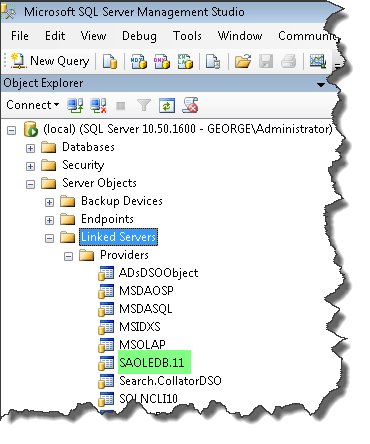
  2. In the pane on the left, open Server Objects.
  3. Under Server Objects, open Providers. If you have SOS installed on this server, there should be a provider named "SAOLEDB11". If not, install SOS on the server, taking care to select the "Client" option (because obviously there is a different computer hosting the SOS database and we will be connecting to it as a client). Restart SQL Server Management Studio to see if the driver now appears under Providers. If not, you will have to manually register the appropriate DLLs as follows.

    If you are running 32 bit SQL Server, open a command window and type the following, making appropriate adjustments in the location of the SOS folder:
    REGSVR32  C:\SOS\SA\BIN32\DBOLEDB11.DLL <press enter>
    REGSVR32  C:\SOS\SA\BIN32\DBOLEDBA11.DLL <press enter>

    If you are running 64 bit SQL Server, open a command window and type the following, making appropriate adjustments in the location of the SOS folder:
    REGSVR32  C:\SOS\SA\BIN64\DBOLEDB11.DLL <press enter>
    REGSVR32  C:\SOS\SA\BIN64\DBOLEDBA11.DLL <press enter>

    Again, restart SQL Server Management Studio to refresh. The SAOLEDB11 provider should now appear in the Providers list.

    SNAGHTML1fcaacf

  4. Right-click on Linked Servers and select "New Linked Server".
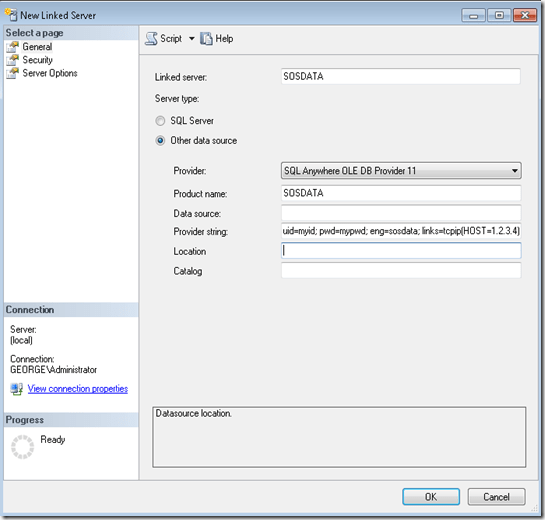
  5. Fill in the General page like this:

    image

    The Provider string is the connection string. Include the user id (uid), password (pwd), engine, aka server name (eng), the network protocol (links), and for good measure, the ip address of the computer on which the database is running as a parameter after the links specification. Here is an example:
    uid=myid; pwd=mypwd; eng=sosdata; links=tcpip(HOST=1.2.3.4)

  6. The "Linked server" field on the General page should contain a Linked Server name in the first field (like SOSDATA used above). The "Other data source" option should be selected and "SQL Anywhere OLE DB Provider" should be selected from the list. The "Product name" field should contain an ODBC data source name (for example, SOSDATA). The "Provider string" field should contain additional connection parameters including user ID, password, engine, and links. Other fields, such as Data source, Location, and Catalog on the General page should be left empty.

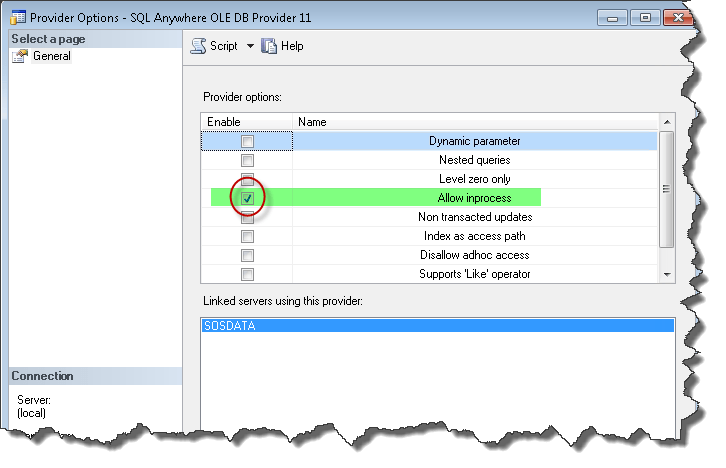
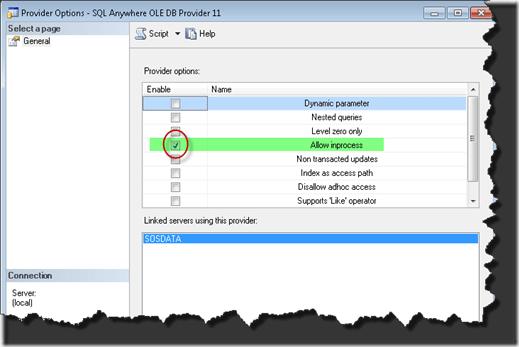
  7. Select the "Allow inprocess" provider option.

    Right-click the SAOLEDB.11 provider in Providers list beneath Linked Servers and select Properties. Check the Allow inprocess option. If the InProcess option is not selected, queries will fail. Save.
    SNAGHTML20f3cc7

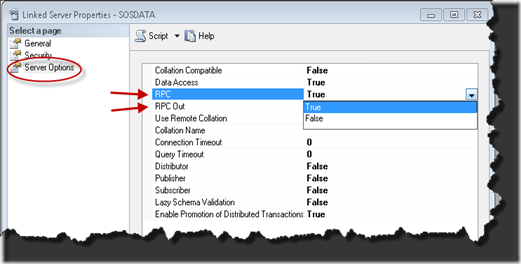
  8. Select the "RPC" and "RPC Out" options.

    Right-click your new Linked Server in the left pane under Linked Servers and select Properties. These options are True / False settings. Make sure that they are set True. The Remote Procedure Call (RPC) options must be selected if you wish to execute stored procedure / function calls in a SQL Anywhere database and pass parameters in and out successfully.
    SNAGHTML213aaef

You should now be able to query tables in SOSDATA using the techniques described at the top of this article.

Client/Server Computing with Sybase SQL Anywhere

Complete Sybase documentation for Sybase SQL Anywhere (SA) can be found by selecting Sybase Manuals on the Help menu in Office Manager (OM), Case Manager (CM), or Appointment Scheduler (AS). Alternatively, select Start > Programs > SOS Applications > Sybase Manuals. There are actually three SA guides:

SQL Anywhere Server SQL Usage, which includes an introduction to SA databases, queries, and other related topics. Many of these are not relevant to your “read only” access to the SOS database.

SQL Anywhere Server SQL Reference, which includes detailed information about SQL syntax.

SQL Anywhere Server Database Administration, which is perhaps the most useful in that it includes detail about management of the database and log files.

Another valuable source of SA information is the Sybase web site, http://www.sybase.com.

Specifications and Limits

The version of SA that comes with SOS Applications is locked to prevent changes to any SOS data by third party programs such as Microsoft Access. This restriction in no way limits your ability to view, read, report, or analyze SOS data with another program (assuming you have been granted access), but you will not be able to modify the data. Without a thorough knowledge of the intricacies of the SOS database and exactly how the many tables relate to one another, you could accidentally introduce data errors or inconsistencies by making a seemingly innocent change.

As you can see from the specifications below, you are extremely unlikely to run into any technical limitations of the database system.

Database size Operating system maximum file size
Number of tables per database Up to 4 billion
Number of tables referenced per transaction No limit
Table size Limited only by file size
Number of columns per table 45,000
Number of rows per table Limited only by file size
Row size Limited only by table size
Number of rows per database Limited only by file size
Field size 2 GB
Number of indexes 2,048 per table
Maximum index entry size No limit

Standalone Installations

When you run an SOS application in a standalone configuration, you are making use of three separate but related software systems: SOS’s application, Microsoft’s Open Database Connectivity (ODBC) system, and Sybase’s SA personal database server engine.

OM, CM and other SOS programs are called front-end or client applications. These applications do not directly manipulate the data stored in the database files. Rather they sends messages, commands, and requests to the Windows ODBC system. Using information stored in the SA driver installed on your system, ODBC translates these generic messages into the specific dialect that can be understood and acted upon by the SA database engine, also running on your system. The database engine then retrieves or modifies your data in accordance with the messages received through the ODBC interface and passes any requested data back to the client program through the ODBC layer.

Network Installations

Client/Server architecture was designed to make network computing more efficient. Work is divided between client workstations and a powerful server, thereby improving performance. Further, client/server applications create much less “traffic” on the network, also resulting in higher performance. Finally, because workstations do not directly control the physical data files, there is little chance of data corruption from power losses, reboots, and other disruptions at the workstation end of the system.

As with a standalone implementation, the operation of an SOS program involves several related software systems (the front-end program such as OM, CM, or the Appointment Scheduler, the Windows ODBC component, the SA client drivers) but also the network operating system on the workstation, the network operating system on the server computer and the SA server software. The network implementation also involves additional hardware components, including network interface cards, cables, other network devices, and, of course, the server computer itself. In a wide area network installation, there can also be routers, firewalls, and various other pieces of communications technology. If the SOS application has trouble reading or updating data in the database, any of these components could be to blame.

All of these potential points of failure could lead to challenging troubleshooting, but the presence or absence of the same problem at a different workstation can quickly isolate the problem to the server or workstation. See the Troubleshooting document in the SOS web site document library for pointers on problem-solving. The online user group (http://groups.google.com/group/sosoft) also can be a great resource. Another user may have had and solved a similar problem in the past.