Mail Merge Labels in Word Using Query Results

This document presents a sample query that, when run using the SOS-supplied DBISQL utility, produces an EXCEL file that can be used as the data to produce a set of mailing labels in MS Word. There is a document on the SOS web site that describes how to run queries:

http://www.sosoft.com/queries/how2010/

Specifically, it selects from the main data set (licnum = 101), only certain primary providers, and only those with a non-zero service within the last 270 days. The results of the query are saved in a file called LABELS.HTML in the SOS folder on the C: drive (see last line of the query). You can copy and paste the query below directly into DBISQL, then make any changes you like before running it.
SELECT
TRIM(a.firstname) AS “First Name”,
TRIM(a.lastname) AS “Last Name”,
a.addr1 AS “Address 1”,
a.addr2 AS “Address 2”,
TRIM(city) AS “City”,
TRIM(state) AS “State”,
zip
FROM
rv_patients a
JOIN ptvars b ON a.ptnum = b.ptnum
WHERE
a.licnum = 101
AND a.priprvcode IN (‘AB’,’CD’,’EF’,’GH’)
AND b.lfeedate > (TODAY() – 270)
ORDER BY
a.lastname, a.firstname
;
OUTPUT TO c:\sos\labels.html FORMAT HTML

Once you have run your query successfully, open the resulting XLS file in MS EXCEL and re-save it. That will put it into the file format that your particular version of MS Word likes best. Now open your web browser and go to:

http://www.sosoft.com/files/tv/other/querylabelmerge.swf

to view a short Flash video that demonstrates how to create your labels using the output of your query. Depending on the speed of your internet connection, the video may take a while to load. (If you don’t have the Flash add-in installed, your browser will probably offer to download and install it for
you.)
Automatic Selection of Data Source When Starting DBISQL

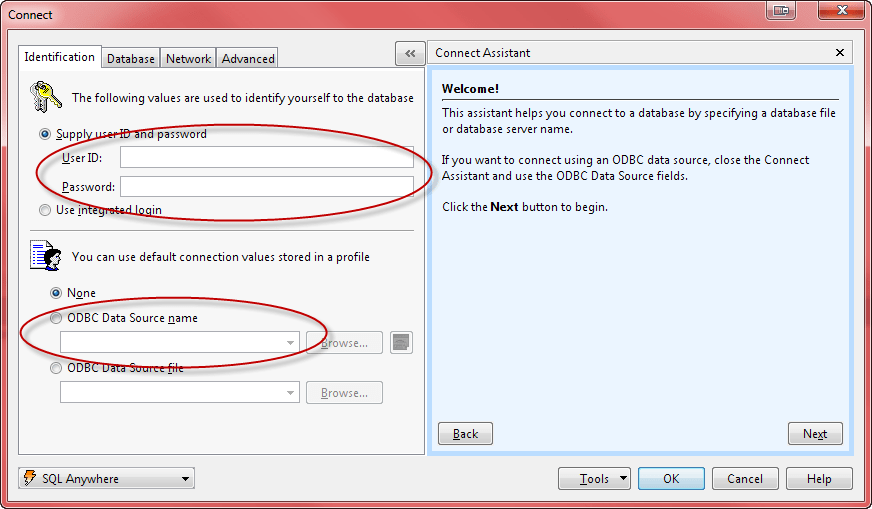
Normally when you open the DBISQL query utility, you must provide your SOS User ID, your password, and select the data source:

DBISQL_Login

Because of the potential security risk, you would not want to default values for your ID and password, but it would be a convenience if there were a way to automatically select the SOSDATA data source. Very few SOS users would have any reason to select anything else for that field.

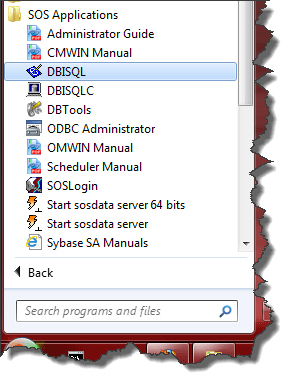
It turns out that you can specify the data source when DBISQL is launched, sparing you the need to enter it every time. Here is how it is done. (The images below are from Windows 7):

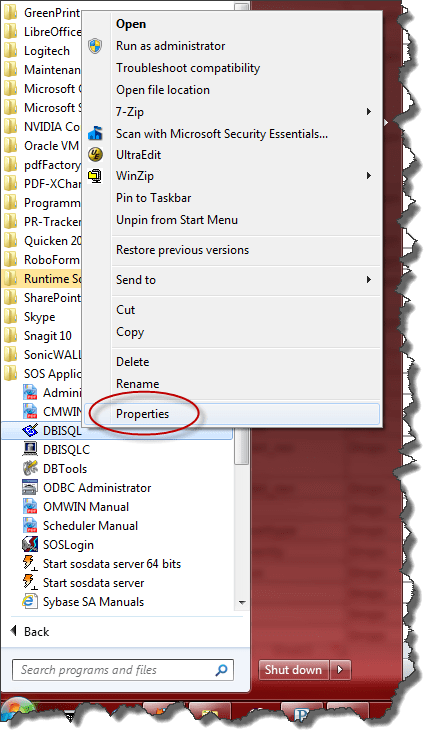
    1. Find the shortcut in your Windows Start menu for DBISQL. Normally you would find it at Start > Programs > SOS Applications.DBISQL_StartMenu
    2. RIGHT-click the DBISQL shortcut to open the context menu, then LEFT-click Properties at the bottom of the menu to open the Properties window:DBISQL_shortcutprops
    3. In the Properties window you will see the Command Line that Windows uses to launch the program. Simply add –c “dsn=sosdata” to the end of that line. When you are finished it will look like this:DBISQL_CommandLine
    4. Now just click OK to save. If you have a shortcut pinned to your Start menu or on your desktop, you can go through exactly the same steps to change those as well.

Updated 2/27/2019

Querying SOSDATA from within MS SQL Server

A Microsoft Linked Server can be created that uses the SQL Anywhere OLE DB provider to obtain access to a SQL Anywhere database. SQL queries can be issued using either Microsoft’s 4-part table referencing syntax or Microsoft’s OPENQUERY SQL function. An example of the 4-part syntax follows.

SELECT * FROM SOSDATA..SOS.Patients

In this example, SOSDATA is the name of the Linked Server, SOS is the table owner in the SQL Anywhere database, and Patients is the table name in the SQL Anywhere database. The catalog name is omitted (as indicated by two consecutive dots) since catalog names are not a feature of SQL Anywhere databases.

The other form uses Microsoft’s OPENQUERY function.

SELECT * FROM OPENQUERY(SOSDATA, ‘SELECT * FROM Patients’)

In the OPENQUERY syntax, the second SELECT statement (‘SELECT * FROM Patients’) is passed to the SQL Anywhere server for execution.

To set up a Linked Server that uses the SQL Anywhere OLE DB provider, a few steps must be followed.

To set up a Linked Server in SQL Server 2005 or 2008
  1. Open up SQL Server Management Studio.
  2. In the pane on the left, open Server Objects.
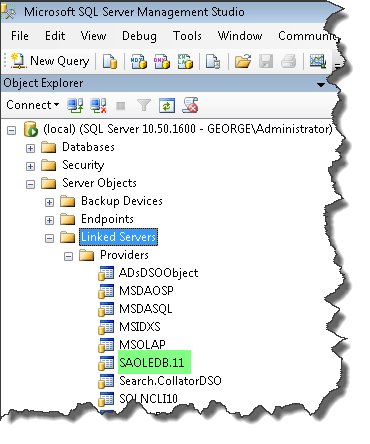
  3. Under Server Objects, open Providers. If you have SOS installed on this server, there should be a provider named "SAOLEDB11". If not, install SOS on the server, taking care to select the "Client" option (because obviously there is a different computer hosting the SOS database and we will be connecting to it as a client). Restart SQL Server Management Studio to see if the driver now appears under Providers. If not, you will have to manually register the appropriate DLLs as follows.

    If you are running 32 bit SQL Server, open a command window and type the following, making appropriate adjustments in the location of the SOS folder:
    REGSVR32  C:\SOS\SA\BIN32\DBOLEDB11.DLL <press enter>
    REGSVR32  C:\SOS\SA\BIN32\DBOLEDBA11.DLL <press enter>

    If you are running 64 bit SQL Server, open a command window and type the following, making appropriate adjustments in the location of the SOS folder:
    REGSVR32  C:\SOS\SA\BIN64\DBOLEDB11.DLL <press enter>
    REGSVR32  C:\SOS\SA\BIN64\DBOLEDBA11.DLL <press enter>

    Again, restart SQL Server Management Studio to refresh. The SAOLEDB11 provider should now appear in the Providers list.

    SNAGHTML1fcaacf

  4. Right-click on Linked Servers and select "New Linked Server".
  5. Fill in the General page like this:

    image

    The Provider string is the connection string. Include the user id (uid), password (pwd), engine, aka server name (eng), the network protocol (links), and for good measure, the ip address of the computer on which the database is running as a parameter after the links specification. Here is an example:
    uid=myid; pwd=mypwd; eng=sosdata; links=tcpip(HOST=1.2.3.4)

  6. The "Linked server" field on the General page should contain a Linked Server name in the first field (like SOSDATA used above). The "Other data source" option should be selected and "SQL Anywhere OLE DB Provider" should be selected from the list. The "Product name" field should contain an ODBC data source name (for example, SOSDATA). The "Provider string" field should contain additional connection parameters including user ID, password, engine, and links. Other fields, such as Data source, Location, and Catalog on the General page should be left empty.

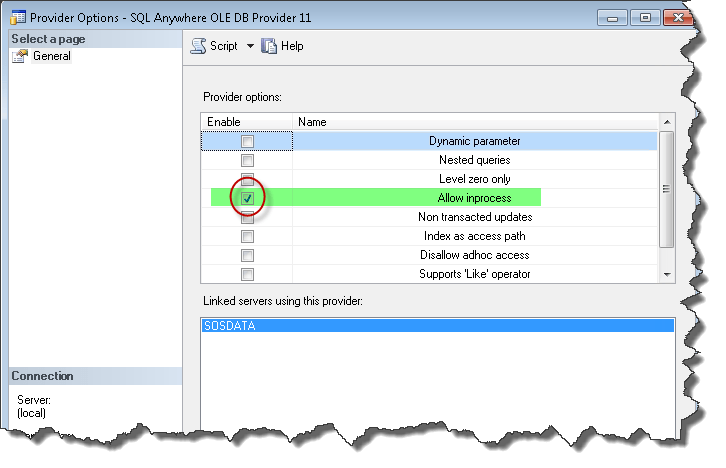
  7. Select the "Allow inprocess" provider option.

    Right-click the SAOLEDB.11 provider in Providers list beneath Linked Servers and select Properties. Check the Allow inprocess option. If the InProcess option is not selected, queries will fail. Save.

    SNAGHTML20f3cc7

  8. Select the "RPC" and "RPC Out" options.

    Right-click your new Linked Server in the left pane under Linked Servers and select Properties. These options are True / False settings. Make sure that they are set True. The Remote Procedure Call (RPC) options must be selected if you wish to execute stored procedure / function calls in a SQL Anywhere database and pass parameters in and out successfully.

    SNAGHTML213aaef

You should now be able to query tables in SOSDATA using the techniques described at the top of this article.