SOS G5 Backup and Recovery

Most SOS G5 organizations will be using Microsoft SQL Server to store their data. This database engine is available in a wide range of versions. Most SOS users probably will be using the free SQL Server Express edition, SQL Server Standard, or perhaps, SQL Server Enterprise. All three of these editions share the same core functionality and may be managed using Microsoft’s user interface known as SQL Server Management Studio (SSMS). Assuming that you have the rights to do so, you will be able to use SSMS to manage the database, including backing up and restoring the SOS G5 database. Again assuming that you have the necessary rights, if you are on a network, you will be able use SMSS to do these tasks from any workstation.

Typically, when you install SQL Server on your computer or server, you will also install a copy of SSMS. If you cannot locate a copy, want a copy on another computer, or want to update a copy you previously installed, you can download the installer for the current SSMS software at this Microsoft page: Download SQL Server Management Studio (SSMS).

Using SSMS to create a full backup of your database manually

Once you have installed your SOS G5 software and you have begun to enter data or have imported data from the previous version of SOS, you should backup that data as soon as you have the opportunity. As a start, let’s use SSMS to create a manual backup. We will then make a copy on external media as well.

  • Start by opening SQL Server Management Studio (SSMS).

Once you have logged in, click the plus to the left of “Databases” to expand that node. Right-click the SOSSuite database, then click “Tasks”, then click “Back Up…”.

The dialog for the backup task includes three panels. Go from one to the other using the navigation panel on the left:


Automating database backups using SQLCMD and Windows Scheduled Tasks

Thankfully, it is not necessary to manually go through the steps above every day (or more often). Instead, you can use Windows’ Task Scheduler to automatically run commands to create backups of the database and the transaction log in any desired location on the computer running SQL Server. For example, you could put the following two command lines in a file named BACKUP_SOSSUITE.CMD, and configure Task Scheduler to run this CMD file every night at 1:00 AM. Here are the two commands. The portions that would have to be changed to match your particular installation are in bold.

(all on one line) SQLCMD -E -S .\SQLEXPRESS -Q “BACKUP DATABASE[SOSSUITE] TO DISK=’C:\BACKUPS\SOSSUITE-DATABASE.BAK‘” > C:\BACKUPS\BackupDatabaseResults.txt

(all on one line) SQLCMD -E -S .\SQLEXPRESS -Q “BACKUP LOG[SOSSUITE] TO DISK=’C:\BACKUPS\SOSSUITE-TRANLOG.BAK‘” > C:\BACKUPS\BackupDBLogResults.txt

In this example, .SQLEXPRESS is the name of the SQL Server instance that is running the SOSSuite database. After DISK= is the desired full path and filename of the database or transaction log backup file, and after “>” is the name of the file that is used to capture the results of each of the commands so that you can check to be sure that the backups ran successfully.

Creation of these BAK files IS NOT A SUFFICIENT BACKUP. By definition, these files will be created on a local drive, perhaps even the same drive as your database is running. In addition, every time the commands are run, these files will be replaced by the latest ones. That means that an equipment failure, fire, or theft could wipe out both your data and your only backup!

For that reason it is essential that you include these BAK files in your daily computer or server backups to external media, using third-party backup software such as NovaStor’s NovaBackup or Cloudberry Lab’s Cloudberry Backup products, among many others. High-end server backup software often includes the ability to backup SQL Server databases directly, without the intermediate steps described above, which would certainly be an excellent option. Your backup software will have options to encrypt your backups, which is absolutely essential, and to compress them to minimize the amount of space consumed on your backup media.

See also:

https://docs.microsoft.com/en-us/sql/t-sql/statements/backup-transact-sql?view=sql-server-2017#syntax

Running the SOS SQL Anywhere 11 Database as a Windows Service

*Note:

The following instructions are applicable to SOS 2010 and later.

Overview

The primary reason to configure the SOS SQL Anywhere database to run as a service is that it will continue to run even if nobody is logged into the server computer. Assuming that you set the service to run automatically, it will start as soon as the server boots up. When a service starts, it uses a special system account called LocalSystem (or use another account you specify). The service is not tied to the user ID of the person starting it, and therefore is not stopped when that person logs off.

To add a new service

  1. On the computer that runs the SOS database, open a command prompt.
  2. NOTE: This must be an “administrator mode” command window, so in Server 2008, Vista, and other recent versions of Windows, be sure to right-click the Command Prompt icon and select “Run as Administrator”. In previous versions, it will be enough to log into Windows using an account that has administrator privileges.
  3. Change to the C:\SOS\SA\Bin32 directory (that is, the SA\Bin32 folder within the folder containing your SOS program files, assuming a default installation on the C: drive).
  4. Execute the Service Creation Utility using the -w option. For example, to create a database server service called “mysos”, which starts the specified engine with the specified parameters type the following command, all on one line. The options below will set the service to run under the system account, as a network service, to start automatically, to display the database icon in the system tray, and to be named “mysos”. It will appear in the Windows Services Manager as “SQL Anywhere – mysos”. If you are running the database in 64-bit Windows, using the 64-bit option is recommended, but either version of the engine will work. The 64-bit engine often provides better performance, especially for larger databases. Note that the -i option to display the icon in the system tray won’t work on Vista, 7, or Server 2008 and later, so omit that option if using one of those. Service configuration commands are case sensitive. Type your options exactly as shown (eg: “automatic” will fail but “Automatic” will work).
    32-bit Windows:
    dbsvc -as -t network -s Automatic -i -w mysos c:\sos\sa\bin32\dbsrv11.exe @c:\sos\server.prm c:\sos\data\sosdata.db
    64-bit Windows:

    dbsvc -as -t network -s Automatic -i -w mysos c:\sos\sa\bin64\dbsrv11.exe @c:\sos\server.prm c:\sos\data\sosdata.db
  5. After executing the command, you will find a new Windows service listed in Windows’ Administrative Tools > Services applet: SQL Anywhere – mysos. You can adjust the properties for the service just as you would for any other service.

Notes on adding a service:

  1. Service names must be unique within the first eight characters.
  2. If you choose to start a service automatically, it starts whenever the computer starts Windows.
  3. Choose the account under which the service will run: the special LocalSystem account or another user ID.
  4. If you want the service to be accessible from the Windows desktop, check Allow Service to Interact with Desktop. If this option is cleared, no icon or window appears on the desktop or use the -i option when creating the service.

Removing a service

Removing a service removes the server name from the list of services. Removing a service does not remove any software from your hard disk. If you wish to re-install a service you previously removed, you need to re-type the options.

To remove a service (Command line)

  1. Open an administrator command prompt. (See NOTE under item 1 in the first section of this document.)
  2. Execute the Service Creation utility using the -d option. For example, to delete the service called “mysos”, without prompting for confirmation, type the following command:
    dbsvc -y -d mysos

Notes on removing a service:

In some cases “deleting” a service just marks it for actual removal when you next reboot the system. If you want to delete a service in order to add a new one with the same name, you will have to reboot after doing the deletion, then add the new service when the system has restarted. If you use a different name for the new service, you can disable the old one using the Windows services applet, then delete it as described above so that it will be removed the next time you reboot. You can then add the new service and start it, as long as you are careful to use a different name.

Detailed Reference for the DBSVC Utility

(see also page 820 in the SQL Anywhere Database Administration manual)

Managing services using the dbsvc command-line utility

Syntax dbsvc [ options ] <svc>

dbsvc [-q] [-y] -d <svc>

dbsvc [-q] -g <svc>

dbsvc [-q] -l

dbsvc [-q] [-y] <creation options-w <svc> <details>

Option Description
-a Account name to use (used with -p)
-as Use local system account
-d <service name> Delete a service
-i Allow service to interact with the desktop. Displays an icon that you can double-click to display the database server messages window.
-g <service name> Get details of a service
-l List all SQL Anywhere services
-p Password for account (used with -a)
-q Do not print banner
-rg dependency Specify group dependencies when creating a service
-rs dependency Specify service dependencies when creating a service
-s startup Startup option (default is manual). You must specify Automatic, Manual, or Disabled.
-sd <description> Use this option to provide a description of the service. The description appears in the Windows Service Manager.
-t <type> Type of service, eg: Network
-u <service name> Starts the service named service_name
-w <executable parameters> Creates a new service, or overwrites one if one of the same name exists. If you supply -y, the existing service is overwritten without confirmation.
-x <service name> Stops the service named service_name
-y Delete or overwrite service without confirmation

A service runs a database server or other application with a set of options. This utility provides a comprehensive way of managing Adaptive Server Anywhere services on Windows. The Service Creation utility provides the same functionality as the Service Creation wizard in Sybase Central.

You must be a member of the Administrators group on the local machine to use the Service Creation utility.

Exit codes are 0 (success) or non-zero (failure).

This utility accepts @filename parameters.

Examples
(all executed from the c:\sos\sa\win32 command prompt, even if creating a 64-bit service)

Create a personal (not networked) database service called mypersonaldb, which starts the specified standalone engine with the specified parameters. The engine runs as the LocalSystem user:

32-bit:
dbsvc -as -w mypersonaldb c:\sos\sa\bin32\dbeng11.exe @c:\sos\server.prm c:\sos\data\sosdata.db
64-bit:
dbsvc -as -w mypersonaldb c:\sos\sa\bin64\dbeng11.exe @c:\sos\server.prm c:\sos\data\sosdata.db

Create a network database service called mynetdb. The server runs under the local account, and starts automatically when the machine is booted (all on one line):

32-bit:
dbsvc -as -s Automatic -t Network -w mynetdb c:\sos\sa\bin32\dbsrv11.exe @c:\sos\server.prm c:\sos\data\sosdata.db
64-bit:
dbsvc -as -s Automatic -t Network -w mynetdb c:\sos\sa\bin32\dbsrv11.exe @c:\sos\server.prm c:\sos\data\sosdata.db

List all details about service myserv:

dbsvc -g myserv

Delete the service called myserv, without prompting for confirmation:

dbsvc -y -d myserv

Moving SOS 2010 through 2016 to a New Server

System requirements and recommendations

Moving SOS is not difficult, not even when migrating to a new server. Before committing to new hardware, however, you might want to review the system requirements and recommendations for the current generation of SOS (Releases 2010 through 2015), as well as what we anticipate going forward to the next generation of SOS.

The current software should run fine on most any current Windows desktop or laptop PC used as a network workstation or as a standalone SOS implementation for a small practice. Scaling would normally be just a matter of adding more RAM. Server requirements will vary depending on the roles running on the system, the size of the SOS database, and the number of simultaneous users. For specific details and recommendations, please see the following document:

https://sos-resources.info/g4/210-system-recommendations-for-sos-2010-and-later/

Next, you might want to consider future requirements, as SOS 2016 is expected to be the final version using the current technology. It will be followed by completely re-written, modern software running on the Microsoft .Net platform. You will be able to deploy this new generation of SOS as a local standalone application, a local client-server installation (similar to the current software), a web-based application running on a web server on your own local network, or alternatively, running on a cloud infrastructure service such as Microsoft Azure or Amazon EC2. You will also be able to run a mix of locally-installed Windows software and users accessing the web-based software. It is expected that virtually all multi-user deployments will be as web-based software because of the relative simplicity of deployment and management, and the potential to run the software in a modern web browser on most any computer or tablet. For more information, please see:

https://sos-resources.info/g5/system-requirements-for-next-generation-sos-products/


Moving the current software to a new computer

Turning to the matter of moving the current software to new hardware, here is a step by step guide:

  1. Install the SOS software on the new computer, using your most recent CD, or using a complete installer (not a patch/update) downloaded from the SOS web site’s Download Files page.  It should be the same version or newer than the one you are currently using on the old computer.  (There is no need to install any earlier versions or CD’s.) If you have a current support contract, the installer for the current release is usually available on the SOS web site. If you must go from your current version to a newer version on the new computer (such as SOS 2009 on the old computer to SOS 2010 or later on the new computer, you must also upgrade the version of the database engine, making the process more complex. Contact SOS support for guidance.

  2. Ideally, you should then back up the entire SOS folder on the old computer, including all sub-folders. Backing up the entire SOS folder will assure that you will be moving the entire set of files, including any updates or patches that you have downloaded and installed, custom reports, claim files, and any other personal files you may have created and stored there.

  3. Restore the backup on the new computer. Depending on how you did your backup, your restore will be done differently. If you just copied the files to a DVD or USB drive using Windows Explorer, restoring the files is a simple matter of copying from the DVD or USB drive back to the matching folders on the new computer. If you did a backup using backup software like NovaBackup, then your target for the restore should be the appropriate drive letter on the new computer. The folder information is stored in the backup, and when you restore from your tape or other media, the files will be put back in their original folder locations. IMPORTANT: If you copy files from a DVD or CD using Windows Explorer, the copies on the new computer may all be set to “Read-Only” status. When you have finished copying the files, you should highlight all the files in each of the folders and reset the properties to uncheck the Read-Only setting: Highlight the files, right-click for the context menu, then left-click on Properties. Uncheck the Read-Only box under Attributes.
  4. Go into SOS on the new computer to make sure that the data has transferred correctly.  Only after you are certain that the software runs on the new computer and the data is intact should you remove the program from the old computer!

If you are moving a standalone installation or a database server installation, and you are putting the SOS folder in a different location (such as on a different drive letter, or placing it within a different folder on the new system), you may have to reset the transaction log file name embedded in the database during a previous database rebuild operation. If you fail to do so, the database will not start. The steps to reset the log file name appear in the box below:

    1. Open a command prompt window (Start > Run, then enter CMD or COMMAND and click OK).

    2. Change to the \SOS\DATA folder on the appropriate drive. (Type the drive letter followed by a colon and press <enter>, then type CD \SOS\DATA and press <enter>.) The command prompt should now show the correct drive and path, for example:

      C:\SOS\DATA

    3. Enter this command (SOS 2010 or later):

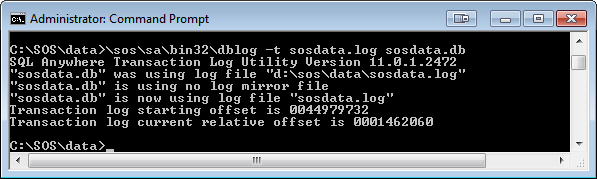
      \SOS\SA\BIN32\DBLOG  -t  SOSDATA.LOG  SOSDATA.DB

    4. This command removes the hard-coded path from the filename so the database will use the SOSDATA.LOG file in the same directory as the database files. You should see something like this:

Uninstalling the SOS Software from the old computer

Once you have confirmed that your new system is working fine and that the data is intact, you must completely remove the SOS applications from your old computer. If you want to backup the entire SOS folder just in case, that is fine, but you cannot leave a run-able copy on the old system. In order to completely remove SOS Office Manager for Windows from your computer, use the Windows Uninstall procedure, remove any SOS folder that remains, and empty the Recycle Bin.  Here are the steps:

  1. In Windows XP: Click on Start > Settings >  Control Panel > Add/Remove Programs.
    In Windows Vista or Windows 7: Click Start >  Control Panel > Programs and Features.
    In Windows 8 - 10: Press the Windows START key on your keyboard,  type control panel then click
    "Programs and Features" (if in Icon view) or click the "Uninstall a program" link under "Programs" 
    (if in Category view).
  2. Scroll down in the box listing your software programs until you find  “SOS Applications”.

  3. Highlight and click on the Remove or Uninstall button (or Right-Click SOS Applications, then select Uninstall).

  4. When you are asked if you are sure you want to completely remove _____ and all its components” click “Yes to All”.  If you are asked for any more verifications of your intention to remove all parts of the program, indicate “Yes”.  When you have finished removing all the SOS applications, close the list window and close Control Panel.

Configuration of the new computer

Database Servers

Edit the SERVER.PRM File in the SOS folder
For readability, we suggest you type each parameter on a separate line. Here is an example:

The recommended network packet size for SQL Anywhere 11 (the database engine provided with SOS 2010 through 2016) is 7300 bytes.  Make sure that is specified in your SERVER.PRM by the parameter:

-p 7300

In addition, to close a potential security threat, SOS strongly recommends that you add the parameter “TDS=NO”, in parentheses, after “-x tcpip”. Here is an example:

-p tcpip(TDS=NO;PORT=2638)

The -c, -cl, and -ch relate to the cache size available on the server  to run the software.  The -c parameter sets the amount of cache requested when the database starts up. The -cl parameter sets the lower size limit for the cache. Finally, the -ch parameter sets the maximum amount of RAM the database will use for cache, even if substantially more is available on the host computer. It is acceptable to omit all three settings, allowing the database engine to dynamically adjust the cache size as it sees best, but unless the server is dedicated to just running the database, you may want to set realistic size limits so that other processes won’t have to compete for RAM.

The best and simplest option for getting optimal performance from a large database is to run it on a 64 bit Windows system with an abundance of RAM. Ideally, you would have enough RAM installed in your system so that the entire database can be cached. In that case, allowing a larger cache is simply a matter of increasing the value of the –ch parameter in the SERVER.PRM file located in the SOS folder on your SOS database server computer. If you have, for example, 12 GB of RAM in your 64 bit system, you could allocate 9 GB of that RAM for potential use as database cache by including:

-ch 9g

in the SERVER.PRM file in the SOS folder. Remember, that parameter just sets an upper limit, it does not mean that 9 GB of RAM will be immediately reserved for use by the database. The amount actually used will go up and down in accordance with the amount of unused RAM in the system and the amount the database would like at any given time. In general, an upper limit size similar to the size of all the DB files (*.DB) in the \SOS\DATA folder will give you the best possible performance. Alternatively, in a 64 bit environment you can simply remove the -ch parameter entirely, which allows the database engine to dynamically size the cache based on resources available.

Windows 32 bit platforms are fine for smaller databases, but because they normally limit you to 1.8 GB for database cache, regardless of the amount of physical RAM in the computer, those with larger databases should really be using a 64 bit server.

The -tq switch shuts down the SOS database at a specified time. (Restarting the database once daily is recommended, and you should do your backup while the database is down.) The time is entered as military time.  For example, if you want to shutdown the database at 10:00 PM you would enter…

-tq 22:00

in the SERVER.PRM file.

Delete and Re-create the Database Service

You may have been running your database on your old system as a Windows background service, or perhaps you want to start doing so. The main advantage to running as a service is that the database will start and run whether or not anyone is logged into the server computer’s console. Services created in versions prior to SOS 2010 appear in the Windows Service Manager in the form:

Adaptive Server Anywhere – mysos

where “mysos” is the name you gave to the service when you created it. You must first remove the existing service, if there is one, then create a new one. The new one will appear in the list of services with a name in the form:

SQL Anywhere – mysos

To delete an existing SOS database service:

  1. Open a command window, being careful to use the “Run as administrator”. (That is, type CMD in the Start menu Search field, then right-click CMD.EXE in the search results and select “Run as administrator”.)

  2. Even if you plan to run the 64 bit database engine, change to the \SOS\SA\BIN32 directory:

  3. CD \SOS\SA\BIN32 <enter>

  4. Assuming that the name of your existing service is “mysos”, delete it with this command:

  5. dbsvc –y –d mysos 

To create the new service:

  1. If you are not already in a command window running with Administrator rights, follow steps one and two above.

  2. Now create the new service with the command below.
    The options in this example will set the service to run:

    • under the system account (-sa),
    • as a network service (-t network),
    • to start automatically (-s auto),
    • and to be named “mysos” (-w mysos)

    It will appear in the Windows Services Manager as “SQL Anywhere – mysos”

    If you are running the database in 64-bit Windows, using the 64-bit option is recommended, but either version of the engine will work. The 64-bit engine often provides better performance, especially for larger databases. If you are running in 32-bit Windows, you MUST use the 32-bit command. These commands would be typed on a single line, of course.

    Note: Service configuration commands are case sensitive. Type your options exactly as shown (eg: “automatic” will fail but “Automatic” will work). If you still have trouble getting the service created, leave out the “-s Automatic”. You can change the property to “automatic” from the Services applet after the service has been created.

    32-bit Windows (all on one line):

    dbsvc -as -t Network -s Automatic -w mysos c:\sos\sa\bin32\dbsrv11.exe @c:\sos\server.prm c:\sos\data\sosdata.db

    64-bit Windows (all on one line):

    dbsvc -as -t Network -s Automatic -w mysos c:\sos\sa\bin64\dbsrv11.exe @c:\sos\server.prm c:\sos\data\sosdata.db

  3. After executing the command, you will find a new Windows service listed in Windows’ Administrative Tools > Services applet: SQL Anywhere – mysos. You can adjust the properties for the service just as you would for any other service.

For more detailed discussion and instruction for running SQL Anywhere as a Windows service, see:

Running the SOS SQL Anywhere 11 Database as a Windows Service

Adjust Scheduled Tasks

You may be using one or more Scheduled Tasks in Windows to control starting or stopping your database. Normally stopping the database automatically is handled with a –tq parameter in the SERVER.PRM file, such as:

-tq 22:00

to automatically shut down the database at 10:00 pm, but if running as a service, it is possible that you are using a scheduled NET STOP <your database service name> command to do so. Either way will work fine.

You probably will want to automate restarting the database after your nightly backup, whether you run the database engine as a foreground task, or as a Windows service. Here is an example of both STOP and START commands:

Inspecting the files in the SOS folder, you might find a CMD or BAT file that launches the database. If so, edit the batch file, making any necessary changes. That command file might include a NET START command that doesn’t reference the correct service name. In that event, change the command to start the correct service. The name, of course, should match the name of the service you created above. Check the properties of the new service in your Control Panel > Administrative Tools > Services to be sure of the name. Once you open the Properties dialog for the service, you will see the service name at the top of the first tab, probably in the form “SQLANYs_mysos”. You should be able to use the verbose name in the Services list, as in the example above, or the short name in the Properties dialog. Both should work equally well, though make sure you include quotation marks around the verbose name to prevent issues with the embedded spaces in the string.

Once you have the command corrected, whether it is to start the database service or launch the engine as a foreground application, create a scheduled task in Windows task scheduler to execute the command or command file every morning before staff arrives to work.

IMPORTANT: If you run the database engine as a foreground task, you must not logout of the server console. If you do, the database will shut down. That is another reason to run it as a service in the background.

Network Workstations

After installing the new version of the software on a network workstation, including a terminal server, check the ODBC settings to be sure that the Buffer Size setting on the Network tab is set to 7300 bytes to match the packet size setting on the server. While on this tab, note that specifying the IP address of your database server as a TCP/IP parameter in the form: HOST=123.123.123.123 (using your own server’s address) is sometimes necessary if the workstation cannot otherwise locate and connect to the database server. Unless you are having a problem, do not specify this parameter. Also on the Network tab is an option to Compress network packets. Using this option can make a significant performance improvement on some networks, but can slow things down on others. If your servers and workstations are relatively speedy, but your network is slow, this option should help. On the other hand, if your server and/or workstations are already working pretty hard, and you have abundant network capacity, checking this option may actually slow things down. You will have to experiment to know for sure. Test by timing the generation of large reports.

Firewall issues are the ones most often responsible for client-server communication problems. Make sure that you open port 2638, which is the one used by the SQL Anywhere engine by default.

Help system for SOS does not work in Vista, Windows 7 or Windows 8

On a stock Window Vista, Windows 7 or Windows 8 computer, attempts to access the built-in help system in SOS modules will result in an error message, stating that your current version of Windows does not support the program’s help system. The needed help system software is available on the Microsoft Downloads site, from which you can download and install the missing component.

The following page on the web contains links to the correct WinHlp32 installer for all of the current versions of Windows, including Vista, Windows 7, and Windows 8:

http://www.microsoft.com/en-us/download/search.aspx?q=WinHlp32.exe

Moving SOS to a New Computer

The following instructions are for standalone installations, where the application software and the database are on one computer. For server migration, this article should be consulted.

Many practices are finding that their old hardware has become outdated. While those old machines have provided excellent service, they have become too slow, too limited in RAM, and too congested in hard drive space to continue serving well. Making the move to a new machine is not difficult as long as you follow certain steps.

  1. Install the SOS software on the new computer, using your most recent CD or the appropriate downloaded installer.  It should be the same version or newer than the one you are currently using on the old computer.  (There is no need to install any earlier CD’s.) If you don’t have a CD for the same version of the software, check to see if there is an installer for your version available on the SOS web site, or call SOS support. If you have a current support contract, the installer for the current release is usually available on the SOS web site. If you must go from SOS 2009 or earlier to a more recent version on the new computer (such as SOS 2009 on the old computer to SOS 2015 on the new computer, you must also upgrade the version of the database engine, making the process more complex. Contact SOS support for guidance.
  2. Ideally, you should then back up the entire SOS folder on the old computer, including all subfolders. Backing up the entire SOS folder will assure that you will be moving the entire set of files, including any updates or patches that you have downloaded and installed, custom reports, claim files, and any other personal files you may have created and stored there.
  3. Restore the backup on the new computer. Depending on how you did your backup, your restore will be done differently. If you just copied the files to a DVD or USB drive using Windows Explorer, restoring the files is a simple matter of copying from the DVD or USB drive back to the matching folders on the new computer. If you did a backup using backup software like NovaBackup, then your target for the restore should be the appropriate drive letter on the new computer. The folder information is stored in the backup, and when you restore from your tape or other media, the files will be put back in their original folder locations.IMPORTANT: If you copy files from a DVD or CD using Windows Explorer, the copies on the new computer may all be set to “Read-Only” status. When you have finished copying the files, you should highlight all the files in each of the folders and reset the properties to uncheck the Read-Only setting: Highlight the files, right-click for the context menu, then left-click on Properties. Uncheck the Read-Only box under Attributes.
  4. If you are moving a standalone installation or a database server installation, and you are putting the SOS folder in a different location (such as on a different drive letter, or placing it within a different folder on the new system), you may have to reset the transaction log file name embedded in the database during a previous database rebuild operation. If you fail to do so, the database will not start. The steps to reset the log file name appear below:
    1. Open a command prompt window (Start > Run, then enter CMD or COMMAND and click OK).
    2. Change to the \SOS\DATA folder on the appropriate drive. (Type the drive letter followed by a colon and press <enter>, then type CD \SOS\DATA and press <enter>.) The command prompt should now show the correct drive and path, for example:
      C:\SOS\DATA.
    3. Enter this command (SOS 2010 or later):
      \SOS\SA\BIN32\DBLOG -t SOSDATA.LOG SOSDATA.DB
    4. You should see something like this:dblog
      This command removes the hard-coded path from the filename so the database will use the SOSDATA.LOG file in the same directory as the database files.
  5. Go into SOS on the new computer to make sure that the data has transferred correctly.  Only after you are certain that the software runs on the new computer and the data is intact should you remove the program from the old computer!

Uninstalling the SOS Software from the old computer.

Once you have confirmed that your new system is working fine and that the data is intact, you must completely remove the SOS applications from your old computer. If you want to backup the entire SOS folder just in case, that is fine, but you cannot leave a runnable copy on the old system. Using the Windows Uninstall procedure, remove the programs, then manually remove any SOS folder that remains and empty the Recycle Bin.  Here are the steps:

  1. In Windows XP: Click on Start > SettingsControl Panel > Add/Remove Programs.
    In Windows Vista/7/8: Click on StartControl Panel > Programs and Features.
  2. Scroll down in the box listing your software programs until you find the “SOS Applications”.
  3. Highlight and click on the Remove or Uninstall button (or Right-Click, then Uninstall).
  4. When you are asked if “you are sure you want to completely remove _____ and all its components” click Yes to All.  If you are asked for any more verifications of your intention to remove all parts of the program, indicate “Yes”.  When you have finished removing all the SOS applications, close the list window and close the Control Panel.