Potential Security Vulnerability (TDS) Fix (incomplete)

(The following information is relevant only for those running the SOS database in networked mode. If you are running a standalone configuration of SOS, without the keyword “tcpip” in the SERVER.PRM file, there is nothing you need to do.)

Although this vulnerability applies primarily to Sybase’s larger, enterprise product, SOS strongly recommends the following, easy procedure to prevent any use of a similar exploit against your SQL Anywhere database.

  1. In your SOS folder, look for the SERVER.PRM file and open it with Notepad or any other plain text editor (NOT using a word processor like MS Word!). You could, for example, open Notepad on your server, then load the SERVER.PRM file, located in your SOS folder.
  2. Find the -x tcpip parameter. It may or may not be followed by one or more parameters within a set of parentheses.
  3. If there are no parentheses, then add (TDS=NO) immediately after the -x tcpip. If there are already parentheses and one or more parameters, then add a semi-colon and TDS=NO just before the closing parenthesis. See the examples below.

Examples:

The change will take effect next time you shut down and restart the database. To be sure, after restarting the database, go into Office Manager or Case Manager, then select HELP > VERSION INFORMATION. Click the DB tab and examine the “Server Startup Command” at the bottom of the window:

Performance Tip: Match Server CPU and RAM to the Number of Users on Your System

RAM

If you call SOS with a complaint about software performance, the first thing a technician will check is the amount of RAM you have configured for the database to use for cache. The larger your cache, the more of your database that can be copied from the relatively slow hard drive to much faster RAM memory, and the faster your database can respond to the software’s requests for data. Insufficient cache because of too little physical RAM in the computer or because of a simple configuration oversight can be deadly, especially for reporting.

CPU

Everyone has had the experience of standing in a long line at a supermarket because there was only one cashier on duty. In most cases, at some point a manager will notice the log-jam and open additional registers. Waiting shoppers quickly spread out among the new cashiers, and in short order the situation is resolved. New shoppers arriving at check-out have little or no wait.

A very similar thing can happen with your SOS database server. Retrieving, adding, updating, and deleting data in SOS all take the form of database queries or commands. Each must be executed in turn, and the execution of these commands requires computing resources – specifically memory and CPU resources — on the server computer.

Recently SOS technicians received a couple of calls from customers who were experiencing poor performance in SOS. In both cases they discovered that the customers had adequate RAM but just one CPU core available on the database server to handle the work being sent to it by between 9 and 30 users. It was therefore no surprise that reports were taking “forever” to run, and that users were complaining about getting “locked up”. In that situation, frustrated users often resort to drastic measures, like rebooting their computers or force-stopping SOS while it is waiting to complete some process that has not run to completion. That just adds to the problem because the database must now also clean up the mess left by the rebooting users. The single CPU core is similar to the one cashier in the supermarket. He or she may be working at top speed, but to the person at the end of the line, it feels like nothing is happening.

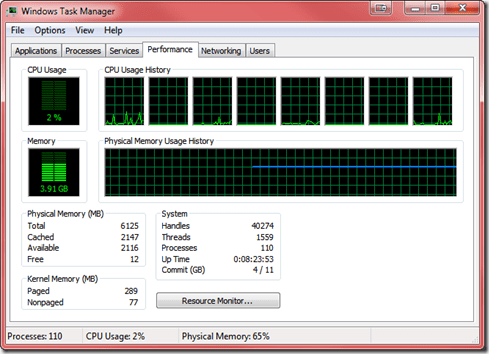
For the store, the solution is to add more cashiers. For your SOS database, the solution is to move the database to a computer with more CPU cores. Fortunately, modern computers, even relatively inexpensive ones, typically have at least two to four core CPU’s. More and more frequently you will find computers with advanced processors that allow six or eight processor paths, even if there are only three or four actual CPU cores. The Intel Core i7, for example, is a high-performance, quad-core processor found in many computers in the $700 to $1,000 range, but which provides software with eight parallel execution pathways. In an environment of that kind, thirty to fifty users will rarely find themselves waiting around for very long!

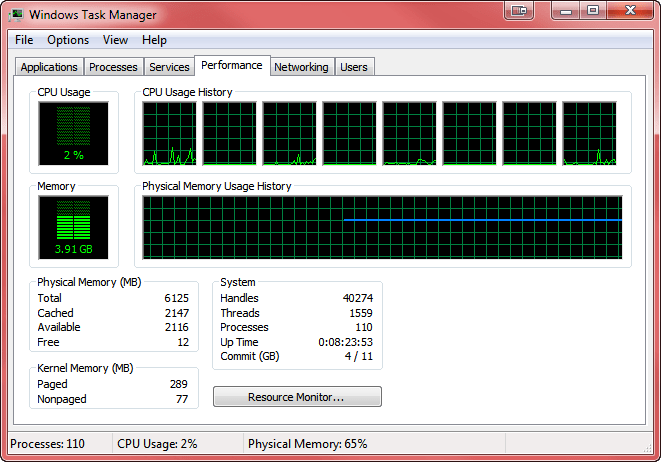
In the screenshot below, showing the Performance tab of Windows Task Manager, you can see the eight parallel processing paths available on an Intel Core i7 CPU:
taskmgrcpu

How Do I Know If I Have One of These Issues?

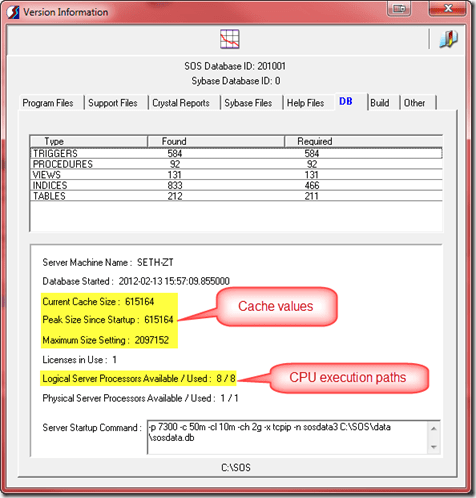
There is a quick and easy way to check your cache and CPU situation. From the top menu in OM or CM select Help > Version Information, then click the DB tab.
dbtab

Examine the cache values (best done at the end of a busy day). If the peak size is less than the maximum size setting, you have ample cache, at least for now. If the numbers are the same, then it is likely that you would benefit from adding more cache, either by increasing the maximum size setting in your SERVER.PRM file, or if necessary, by adding more RAM to your system (if possible). For more detail about cache settings, see http://www.sosoft.com/fod/doc435-enhancing_perf_large_db.pdf

To see how many CPU execution pathways are available in your computer, check the “Logical Server Processors Available” line. If you see “1/1” here and you have more than two people on your system, you are going to really suffer. Even one person running a standalone copy of SOS can encounter issues in that situation and would see much better computer performance across the board by upgrading to at least a dual-core computer.

Some settings make use of virtual servers that can be configured to use a specified number of the host computer’s CPU cores. Often the default setting for virtual machines is just one processor core, even when the host system has four or more available. If your database is running on a virtual server and SOS shows “1/1” Logical Processors Available, you should adjust the virtual machine settings to allow it to use more of the host computer’s cores.

Database Settings Can Make a Difference

There are two internal database options that can make a significant difference in performance: max_query_tasks and optimization_goal. In most cases, the former should be set to 1, and the latter to “All-rows”. To determine your own settings, check in Reports > Other Reports in OM to see if you have the report “Database Performance Options”. If not, you can download it from here: http://www.sosoft.com/files/downloads/dbperfopts.rpt and install it in the Other Reports menu using these instructions: http://www.sosoft.com/fod/doc474-adding_new_report.pdf.

2-14-2012 5-11-21 PM

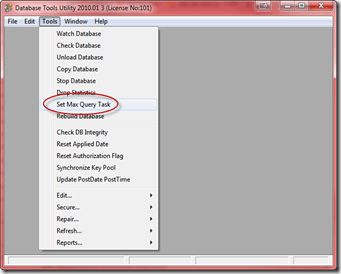
If max_query_tasks is not set to 1, you can change it using a tool on the tools menu in DBA Utilities. Using an SOS login with security administrator rights, click the Admin icon on the login window, then go to Database Tools > DBA Utilities. Click Set Max Query Task. That item is a toggle that switches the setting back and forth between 0 and 1. When set to 1 it should display a checkmark next to the menu item, but it is a good idea to confirm the setting with the report and re-toggle if it is not set as you wish.
2-14-2012 5-15-51 PM

There is no utility to reset optimization_goal, but an SOS support tech can establish a remote connection to your system and reset it for you.

Consider a Server that is not a Server

One thing that is important to understand is that it is not necessary to run the database on a computer that says “server” on the box, nor is it necessary to have Windows Server xxxx as the operating system on your SOS database computer. For example, instead of adding an official “server,” you can add a computer running Windows 7 Pro on an Intel Core i7 or similar CPU to your network, install a copy of SOS using the “server” option, move your database over, and fire it up. Remember that it is not recommended that you map the database server’s SOS folder as a network share, so Microsoft’s 10 user limit on non-server versions of Windows is not an issue. Database access over the network is not done with Windows shares and therefore does not count against that limit. You can therefore have dozens of users on the database even though it is running on Windows 7 rather than Server.When upgrading a server is not a possibility for one reason or another, this approach can provide the same results for a fraction of the cost.

Note that if you plan to use your server as both the database server and a terminal server, then you must run a Windows Server operating system (such as Windows Server 2008, or Server 2008 R2). You cannot use Windows 7 as a terminal server.

(#210) System Recommendations for SOS 2010 through 2016

The following recommendations should deliver adequate performance in each indicated category. If your implementation is particularly demanding, you want better than just “adequate” performance, or your database is large, you should increase both RAM and processor speed to compensate. Simultaneous usage of resource-hungry applications such as Microsoft Office also demand more RAM.

Windows 32 bit Software
(Compatible with Windows 64 bit)

At present, SOS applications are distributed as 32-bit software. They will, however, install and run in a Windows 64 environment and both 32 and 64-bit database engines are provided. The minimum version of Windows supported by SOS is Windows 11 Pro, Windows Server 2016, Windows Server 2019, and Windows Server 2022.

Windows 8.1 and Windows Server 2012 will no longer receive security updates as of January 10th, 2023 and October 10th, 2023, respectively, and therefore will not be supported. Windows 10 will no longer receive security updates as of October 14th, 2025. SOS users are strongly encouraged to upgrade operating systems to assure compatibility with the next generation of SOS products.

Standalone Computer or Network Workstation

  • A 1.6 GHz or faster (recommended) computer with at least 4 GB of RAM, running Windows 11 Pro. For satisfactory performance, SOS recommends at least 8 GB of RAM.
  • A faster, multi-core processor and more RAM is even better, especially if you will be running two or more applications at the same time, or if your SOS database will be large. The ideal is to have enough RAM to match the size of the database running on it.
  • A minimum of six GB of free hard disk space for a small practice; much more for large groups and agencies.
  • A high speed internet connection for installation. On networks, a shared drive may be used. Software is only available for download.
  • A 19″ or larger flat panel display, running 1440 x 900 resolution or higher. Multiple monitor configurations are supported and encouraged.
  • TWAIN compatible scanner to scan documents from within SOS applications. WIA compatible scanners can be used, but do not provide either multipage or duplex capabilities. Scanners used by SOS customers include: Docketport 687 card scanner, Canon N670, Xerox Documate 252, and Fujitsu FI-6130. TWAIN is the industry standard scanner interface, so most scanner manufacturers, including Microtek, Umax, VistaScan, HP, Fujitsu have TWAIN models. Note, however, that certain scanner models, even from these manufacturers, do not support the TWAIN standard. For example, HP’s Officejet multi-function printers support WIA, but not TWAIN. Likewise, the popular Fujitsu ScanSnap 500 series uses a proprietary interface and software package that supports neither WIA or TWAIN. If purchasing a new scanner, confirm that TWAIN drivers are included or are available for the desired model and the version of Windows that you are using. Scanners that are not compatible with SOS’s scanner interface can, of course, be used to capture documents as computer files, and those files can be incorporated as attachments to patient records in SOS. Although not quite as convenient, it is still a workable solution.
  • Tape backup or a similar robust removable backup system such as external drive or USB that permits easy media rotation and off-site storage of archival backups. Supplemental internet-based backups are strongly encouraged for redundancy and disaster-recovery purposes, but be sure that the backup vendor conforms to HIPAA requirements, including execution of a Business Associate Agreement. Your backups, whether local or online, must be encrypted.

Network Server

A note concerning the next generation of SOS software: The SOS software currently in development, G5,  will be run on web and database servers located on a local network, in a data center, or on a cloud service like Amazon Web Services and Microsoft Azure. If you host the software on your own server or servers, you may need more server resources than with SOS’s current client/server deployment model. If purchasing new hardware these considerations should be factored into your equipment selection. Please see: System Requirements for SOS G5 Products

  • A 3.5 GHz or faster server running 64 bit, Windows Server 2016 or newer are recommended. It is also possible to use Windows 11 Pro as your database server. For best performance and data security, SOS recommends that the designated server computer not be used simultaneously as a workstation and as a server. Performance, database security, and integrity may be compromised when the server doubles as a workstation.
  • Many SOS customers use virtual server environments such as VMWare and Microsoft Hyper-V, but SOS cannot provide anything beyond the most basic assistance for these environments. If you install on a virtual server and unusual issues should arise, SOS may require that the installation be moved to a traditional non-virtual platform before providing additional assistance. That said, we intend to have a deployment option for our next generation software in the form of a per-configured, ready-to-run, virtual server package for Microsoft’s Hyper-V and, possibly, for VMWare.
  • Servers should have no less than 8 GB of RAM. In general, additional memory is more important than a faster processor, but processor speed and multiple cores/CPU’s are also important, particularly on larger networks. The amount of RAM recommended is directly proportional to the expected size of your database. Large transaction volume organizations should think in terms of a 64-bit platform with at least 16 GB of RAM and the ability to easily add more. The included database engine will use multiple processors or processor cores to improve performance, if present.
  • Hard drive space proportional to the size of the organization. Assuming that an average patient account includes about 20 journal entries (charges and credits), you should estimate at least 35K – 70K per patient, or 35 MB – 70 MB per 1,000 patient accounts, plus up to 1 GB for the program files. SOS would recommend that you double this figure to allow ample space for temporary tables, transaction logs, and other needs. Use of both SOS OM (receivables and billing) and CM (clinical records) will increase the amount of drive space required. Large groups and agencies can expect databases of several GB’s and up.
  • Performance and data safety can be enhanced on an active system through the use of multiple hard drives or SSD’s, with the transaction log stored on a second drive in the same server and perhaps the index files on a third drive. Moving the transaction log to a different drive is straightforward but relocating the index files requires unloading and reloading the database with a custom reload script. If you would like to implement a more complex installation of this sort, call SOS to discuss whether such a modification would be worthwhile. By default, all data and transaction log files will be installed in a DATA directory located within the SOS program directory on the designated server.
  • One or more high performance hard disks. Ideally, the database files should be located on a separate, dedicated partition on a drive other than the primary system drive.
  • If setting up a dedicated database server that will not also be used for file or printer sharing, you may use Windows 11 Pro to host the database. That is also a possibility if setting up a small “peer” network with 20 or fewer users. It is neither required nor recommended (for security reasons) to configure a network share for the database. All communication between the workstations and the database is done through TCP/IP messaging, without any need for users to log into the database server computer. As a result, the Windows 11 Pro limit of twenty concurrently connected users does not apply for SOS database access. Be sure to disable power saving options that will cause the system to go into sleep mode!
  • A high speed internet connection.
  • Tape backup or a similar robust removable backup system such as external drive or USB that permits easy media rotation and off-site storage of archival backups. Supplemental internet-based backups are strongly encouraged for redundancy and disaster-recovery purposes.
  • SOS products include SAP/Sybase SQL Anywhere as the back-end database engine. The next generation SOS product will permit the database to be run on your existing SQL Server back-end, if preferred.

Updated 11/12/2024