SOS Database Encryption

Note: The following information is for SOS 2010 – 2016 ONLY

Overview

By default, the SOS database is not encrypted, though the physical layout of the database files is such that assembling a coherent record of data would be difficult. Nonetheless, inspection of the database files could reveal identifying information, so some level of encryption is recommended in most all situations, and always if the database is transported from place to place on a portable computer or on removable media (such as removable disk, CD, DVD, USB memory key, or tape) or if the database is transmitted from one location to another electronically.

You may choose to protect the data in the database by selecting either “simple encryption” or “strong encryption” (AES, Advanced Encryption Standard).

Simple Database Encryption

Simple encryption is equivalent to obfuscation and prevents someone using a disk utility, text editor, or even a word processor from being able to read patient names or other information stored in the database files. Simple encryption uses a built-in key and therefore does not require the user to provide a key to encrypt the database. Once encrypted, the information can still be accessed using the SOS and Sybase programs exactly as with an unencrypted database. In addition, utilities such as DBTRAN (which translates the transaction log into readable text) can still be used by anyone who knows how, without the need to provide a password or encryption key. It is therefore essential to secure the computer and drive on which the transaction log (SOSDATA.LOG) is stored, even if using simple encryption. The folder(s) in which the database and log files are stored should NEVER be shared across a network for this reason. Windows shares are entirely unnecessary for use of the SOS system, and for the reasons just given, undercut efforts to keep your data secure.

Strong Database Encryption

Implementing strong encryption is a more complex procedure but renders the database completely inaccessible without an encryption key. There is no back door or recovery possible if the encryption key value is lost or forgotten, so if no reliable key management system is possible in your organization, you should think twice about it.

Changing the Encryption Level of an Existing Database

In order to change the encryption level of your database, you must rebuild it. Starting with Release 2007.02 (December, 2007 build), the SOS Database Rebuild Utility may be used to encrypt your database with Simple Encryption. There is no automated option for applying strong encryption, though SOS tech support can provide you with hands-on assistance to go through the steps, specifically:

      1. Backup your current database.
      2. Unload your database to a set of ASCII tables.
      3. Initialize a new encrypted database.

Reload the new database with the previously unloaded data.

Encryption Option Advantages Disadvantages
No encryption No rebuild required. Best performance. Best chance of database recovery in the event of corruption. No encryption key to remember or safeguard. Patient information – such as names – can be read by opening the database files with a text editor or word processor. Unless physical access to the database is carefully restricted, this option could constitute a HIPAA violation. This option is not supported by the Rebuild Utility.
Simple encryption No encryption key to remember or safeguard. Minimal performance or database recovery impact. Obscures data in database files, preventing it from being accessed by unsophisticated methods. Easy procedure to implement. No configuration changes needed in database startup. Does not provide any encryption of the database log (the sosdata.log) file, which can be translated to readable text using a Sybase utility. Any user can still start the database, and once it is started, can access data as long as he or she has an SOS password that permits access.
Strong encryption (recommended, but requires a short consultation with SOS tech support to enable) Very strong AES 128 bit or even stronger AES 256 bit data protection. Your database and log cannot be started or accessed without the encryption key that you have created. Somewhat more difficult, manual process to implement. Configuration changes necessary for database startup. File containing the encryption key must be secured somewhere on the network or the encryption key must be typed in to start database. Most importantly, loss of your encryption key will render your database useless. Finally, use of strong encryption will incur a performance penalty, in all likelihood in the range of two to five percent, though there are many variables in play.


When selecting the Strong Encryption option, you must provide an encryption key, which is a string of characters that will be used to encrypt and decrypt the contents of your database and transaction log. The normal rules for password generation apply:

  • Use no fewer than 8 characters. SOS’s SQL Anywhere database supports keys of up to 60 characters. A length of 10 to 30 is recommended. Longer keys are more difficult to crack, but theoretically could result in slower performance. The better your hardware, the less likely you would be able to detect a difference.
  • Include upper and lower case letters, plus numbers and special characters in your encryption key. The key may contain any characters on your keyboard except <space>, semi-colon, apostrophe, and quotation mark characters.
  • Strong keys are really random – no pet names or birth dates! Many free and low cost password generators are available to assist in generating random sequences of characters for use as passwords and encryption keys. Popular password managers such as LastPass and Roboform also include password generation tools.

Whenever you select or change your SOS database encryption password, we STRONGLY recommend that you use a key management system of some sort. There is  no way to start or recover your database without it, so having a backup copy of your key in a secure location, available to all staff who might need it is mandatory to assure that you will not lose your data because of a forgotten key. Consider that you might not always be around to provide the key if it is ever needed, so appropriate recovery safeguards must be in place that do not depend on one person.

Performance Considerations Related to Database Encryption

There is a performance penalty for the use of encryption. The penalty is insignificant for the simple encryption method, but may be detectable when using strong encryption. If implementing strong encryption, the customer should pay even more attention to the selection of server hardware, choosing faster processors and disk systems, and, especially, more RAM than might otherwise be necessary. If the amount of RAM is sufficient to permit the entire database to be cached, the performance penalty should diminish and become relatively small after a period of active use. Note also that the length of the encryption key is related to performance, so if you are using a very long key and have performance issues, you can try rebuilding the database with a shorter key.

Recommendations

Given that the Simple Encryption option has minimal performance impact and provides some protection from unauthorized access, it is the minimum SOS recommendation. If your database is carried out of the office on a laptop or in unencrypted backups (such as a straight copy of the DATA folder onto an unencrypted flash drive or DVD), then serious consideration should be given to using Strong Encryption. In that case, it is essential that you carefully think through the entire process. Precautions must be taken to assure that only the most trusted employees are able to log into the server to encrypt the database. Again, however, keep in mind that losing the only employee who knows the encryption key could be disastrous and your plans must include assuring that you will not be left without a way to start and access your database.

How To Implement Simple Database Encryption

The easiest, and SOS recommended, way to change from no encryption to simple encryption is simply to use the Database Rebuild Utility, which will automatically apply simple encryption. It can be run from the command prompt, or using a menu item in the Administration module. This utility is named DBRBLD.EXE and is located in the SOS folder of the database server, or standalone computer if not running on a network. Within the Administration Module, navigate to “Database Tools” then “Database Rebuild Utility” as described below.

  1. Have all users exit all SOS programs.
  2. Backup your database as you normally do.
  3. On the computer where the database is located start SOSLogin.
  4. Enter an account ID and password of a user with SOS security administrator privileges.
  5. Click the “Admin” icon (the keys).
  6. Select Database Tools.
  7. On the list of utilities, select and run “Database Rebuild Utility”

How To Implement Strong Database Encryption

As mentioned previously, applying strong encryption is a manual process that involves several steps and some guidance from SOS tech support. The procedure includes the following steps:


  1. Backup your current database.
  2. Unload your database to a set of ASCII tables.
  3. Initialize a new encrypted database.
  4. Reload the new database with the previously unloaded data.
  5. Create and securely locate an option2.prm file containing an obfuscated version of your encryption key.
  6. Reconfigure the command line needed to start the encrypted database (see next section).

Before walking you through the procedure, SOS’s support tech will review with you the fact that loss of your encryption key will mean permanent loss of your data. The support tech also will ask you about your strategy to prevent loss of your database encryption key.


Starting a Strongly Encrypted Database

Once the database has been encrypted, whenever the database is started, the encryption key must be provided on the command line when the database is started, or the database engine must be instructed to prompt for the encryption key as it starts the database.

By default, SOS includes database engine startup parameters in a file in the SOS folder called SERVER.PRM. This file contains options for the database engine, which could, potentially run more than one database at a time. Options for each database run by the engine cannot be added to the engine options file. They must be placed after each database file on the startup command line. The following examples assume the database is running in a 64 bit Windows environment. If you are running 32 bit Windows, then replace “bin64” with “bin32” in the command line. All the following examples would be on a single line:

Default command line (simple or no encryption options):

c:\sos\sa\bin64\dbsrv11.exe @c:\sos\server.prm c:\sos\data\sosdata.db

Command line to prompt the user for the encryption key (-ep) every time the database is started:

c:\sos\sa\bin64\dbsrv11.exe @c:\sos\server.prm c:\sos\data\sosdata.db -ep

Command line with encryption key specified explicity:

c:\sos\sa\bin64\dbsrv11.exe @c:\sos\server.prm c:\sos\data\sosdata.db -ek secretkey

The last option is obviously less than ideal because the encryption key appears in plain text in the startup line invoked by your shortcut, batch file, etc. There is, however, an alternative. That part of the command line can be hidden using a provided utility that will hide the text from all but expert snoopers. When you select the Strong Encryption option during the rebuild, your encryption key will automatically be saved in an unreadable file called OPTION2.PRM, which you will find in the SOS folder as well as the DATA folder. You can therefore use this variation of the command above (entire command is typed on a single line):

c:\sos\sa\bin64\dbsrv11.exe @c:\sos\server.prm c:\sos\data\sosdata.db @c:\sos\option2.prm

If you wanted to create the unreadable option2.prm file manually, here is how it would be done:

1.   Create a plain text file using Notepad or another text editor.
2.   Enter -ek and the encryption key with which your database was encrypted.
3.   Save the file as TEMP.TMP in your SOS folder.
4.   Now apply simple encryption to the file, saving the encrypted copy as OPTION2.PRM with the command:

c:\sos\sa\bin64\dbfhide temp.tmp option2.prm

5.   You will now have the original TEMP.TMP and an encrypted version called OPTION2.PRM in your SOS folder. Remember, if you lose your encryption key, there is no way to decrypt or run your database! Once you are sure that the encryption key value is safely recorded in case you should ever need it, delete the TEMP.TMP file. Hold down the shift key while deleting to be sure the file is deleted instead of just being moved to the recycle folder. If you have a utility for secure deletion of files, that would be even better. Now you can start the database using the following command, which does not expose the key:

c:\sos\sa\bin64\dbsrv11.exe @c:\sos\server.prm c:\sos\data\sosdata.db @option2.prm

A strongly encrypted database cannot be opened without its matching encryption key. For that reason it is essential that you either backup the option2.prm file containing your key, or securely record the key in a secure log, or formal key management system, that will document changes in the key over time. If you ever have to restore your data from an old backup, you will need the key that was in use when that database was backed up.

Including Your Encryption Key in the ODBC Configuration

In standalone installations, the database is rarely, if ever, started directly. Instead, it is automatically started whenever needed using a start command specified in the ODBC configuration named SOSDATA (located by default on the System DSN tab). As mentioned above, you should not simply type the encryption key in the indicated field on the Database tab because it will appear in clear text in the Windows Registry. Instead, follow the instructions in the section above to create an OPTION2.PRM file that contains an encrypted version of the database encryption option and your key. (It does no harm to make the same modifications on a network database server, but in almost all cases the database server will be started from a shortcut, batch file, scheduled task command, or as a service. The only time the ODBC configuration would be used is if you were to use the SOS Login shortcut when the database was not already running.)

You must then modify the ODBC configuration, specifically the Database tab entries as follows, assuming default SOS folders and a standalone installation:

Configuration Setting
Server name SOSDATA
Start line (typed all on one line) c:\sos\sa\bin64\dbeng11.exe @c:\sos\server.prm c:\sos\data\sosdata.db @option2.prm
Database name SOSDATA
Database file <leave this field empty>
Encryption key <leave this field empty>
Start database automatically checked
Stop database after last disconnect checked


Running an Encrypted Database as a Windows Service

If prompting for a password on startup (the -ep parameter), be sure to use the -i parameter when creating your service so the service can interact with the console. As the service starts, a window will appear in which you must type the encryption key.

The following example (typed all on one line) creates a service that prompts for the encryption key whenever you start the database:

c:\sos\sa\bin64\dbsvc -as -t network -s Automatic -i -w mysos c:\sos\sa\bin64\dbsrv11.exe @c:\sos\server.prm c:\sos\data\sosdata.db -ep

You must include the -i (allow service to interact with the desktop) option when you use the -ep (prompt for encryption key) option. When configured in this fashion, someone must be present at the server console to type the encryption key when the service starts.

Although this option would be the most secure, it may well not be practical. The alternative would be to pass the encryption key value on the service startup line automatically. The problem is that if you type the encryption key in your startup command, it is not secure. To avoid having this value exposed, the -ek parameter, along with the encryption key, may itself be encrypted in a form that the database engine will be able to decrypt. When you rebuild the database the utility will create the appropriate, ready-to-use, encrypted key parameter in a file called option2.prm.

You can also create that file manually as follows:

  1. Create a plain text file using Notepad or another text editor.
  2. Enter -ek and the encryption key with which your database was encrypted.
  3. Save the file as TEMP.TMP in your SOS folder.
  4. Now encrypt the file, saving the encrypted copy as OPTION2.PRM with the command:
    c:\sos\asa\win32\dbfhide temp.tmp option2.prm
  5. You will now have the original TEMP.TMP and the encrypted OPTION2.PRM in your SOS folder. Once you are sure that the encryption key value is safely recorded in case you should ever need it (SOS recommends that you call SOS and have the value stored in your account records at SOS), delete the TEMP.TMP file. Hold down the shift key while deleting to be sure the file is deleted instead of simply moved to the recycle folder. If you have a utility for secure deletion of files, that would be even better.
  6. Now create your service using the following format (typed all on one line, with the appropriate changes if your installation is not in C:\SOS):
c:\sos\sa\bin64\dbsvc -as -t network -s Automatic -i -w mysos c:\sos\sa\bin64\dbsrv11.exe @c:\sos\server.prm c:\sos\data\sosdata.db @c:\sos\option2.prm

Note: For additional information and description of all available command line options for service creation, see: Running the SOS SQL Anywhere 11 Database as a Windows Service

Transport Layer Encryption

In addition to encryption of the database itself, a customer might be concerned about protecting the data while it is “in motion” between the server and the client workstations. Various network protection approaches are available, including VPN, wireless encryption, and use of Windows Terminal Services or Citrix.

As with database file encryption discussed previously, there are simple and strong encryption options available for transport-layer security. An easy way to avoid sending easily read data is to add…

-ec simple

…to your server startup options in the SERVER.PRM file in your SOS folder. Doing so forces all connected clients to use simple encryption on database network communications. Doing so provides the same kind of obfuscation for your database communication packets that simple encryption does for your database files. It will not secure the data from an encryption expert or “hacker” who is determined to eavesdrop on your communications, but it will prevent less sophisticated individuals from reading the contents of your transmission packets by simply hooking up a packet sniffer tool. This sort of simple encryption has a minimal impact on performance, and could be used as an extra layer of protection when using other less-than-ideal encryption, such as standard wifi WPA encryption.

Sophisticated, strong, transport-layer encryption options for your database communications are also available, using RSA or ECC certificates. As stated previously, if you want that level of protection, you should probably investigate strategies that will protect all your network communications, not just database packets. In addition, this kind of database-specific encryption requires purchase of an additional component, which is priced by number of user connections.

Moving SOS 2010 through 2016 to a New Server

System requirements and recommendations

Moving SOS is not difficult, not even when migrating to a new server. Before committing to new hardware, however, you might want to review the system requirements and recommendations for the current generation of SOS (Releases 2010 through 2015), as well as what we anticipate going forward to the next generation of SOS.

The current software should run fine on most any current Windows desktop or laptop PC used as a network workstation or as a standalone SOS implementation for a small practice. Scaling would normally be just a matter of adding more RAM. Server requirements will vary depending on the roles running on the system, the size of the SOS database, and the number of simultaneous users. For specific details and recommendations, please see the following document:

https://sos-resources.info/g4/210-system-recommendations-for-sos-2010-and-later/

Next, you might want to consider future requirements, as SOS 2016 is expected to be the final version using the current technology. It will be followed by completely re-written, modern software running on the Microsoft .Net platform. You will be able to deploy this new generation of SOS as a local standalone application, a local client-server installation (similar to the current software), a web-based application running on a web server on your own local network, or alternatively, running on a cloud infrastructure service such as Microsoft Azure or Amazon EC2. You will also be able to run a mix of locally-installed Windows software and users accessing the web-based software. It is expected that virtually all multi-user deployments will be as web-based software because of the relative simplicity of deployment and management, and the potential to run the software in a modern web browser on most any computer or tablet. For more information, please see:

https://sos-resources.info/g5/system-requirements-for-next-generation-sos-products/


Moving the current software to a new computer

Turning to the matter of moving the current software to new hardware, here is a step by step guide:

  1. Install the SOS software on the new computer, using your most recent CD, or using a complete installer (not a patch/update) downloaded from the SOS web site’s Download Files page.  It should be the same version or newer than the one you are currently using on the old computer.  (There is no need to install any earlier versions or CD’s.) If you have a current support contract, the installer for the current release is usually available on the SOS web site. If you must go from your current version to a newer version on the new computer (such as SOS 2009 on the old computer to SOS 2010 or later on the new computer, you must also upgrade the version of the database engine, making the process more complex. Contact SOS support for guidance.

  2. Ideally, you should then back up the entire SOS folder on the old computer, including all sub-folders. Backing up the entire SOS folder will assure that you will be moving the entire set of files, including any updates or patches that you have downloaded and installed, custom reports, claim files, and any other personal files you may have created and stored there.

  3. Restore the backup on the new computer. Depending on how you did your backup, your restore will be done differently. If you just copied the files to a DVD or USB drive using Windows Explorer, restoring the files is a simple matter of copying from the DVD or USB drive back to the matching folders on the new computer. If you did a backup using backup software like NovaBackup, then your target for the restore should be the appropriate drive letter on the new computer. The folder information is stored in the backup, and when you restore from your tape or other media, the files will be put back in their original folder locations. IMPORTANT: If you copy files from a DVD or CD using Windows Explorer, the copies on the new computer may all be set to “Read-Only” status. When you have finished copying the files, you should highlight all the files in each of the folders and reset the properties to uncheck the Read-Only setting: Highlight the files, right-click for the context menu, then left-click on Properties. Uncheck the Read-Only box under Attributes.
  4. Go into SOS on the new computer to make sure that the data has transferred correctly.  Only after you are certain that the software runs on the new computer and the data is intact should you remove the program from the old computer!

If you are moving a standalone installation or a database server installation, and you are putting the SOS folder in a different location (such as on a different drive letter, or placing it within a different folder on the new system), you may have to reset the transaction log file name embedded in the database during a previous database rebuild operation. If you fail to do so, the database will not start. The steps to reset the log file name appear in the box below:

    1. Open a command prompt window (Start > Run, then enter CMD or COMMAND and click OK).

    2. Change to the \SOS\DATA folder on the appropriate drive. (Type the drive letter followed by a colon and press <enter>, then type CD \SOS\DATA and press <enter>.) The command prompt should now show the correct drive and path, for example:

      C:\SOS\DATA

    3. Enter this command (SOS 2010 or later):

      \SOS\SA\BIN32\DBLOG  -t  SOSDATA.LOG  SOSDATA.DB

    4. This command removes the hard-coded path from the filename so the database will use the SOSDATA.LOG file in the same directory as the database files. You should see something like this:

Uninstalling the SOS Software from the old computer

Once you have confirmed that your new system is working fine and that the data is intact, you must completely remove the SOS applications from your old computer. If you want to backup the entire SOS folder just in case, that is fine, but you cannot leave a run-able copy on the old system. In order to completely remove SOS Office Manager for Windows from your computer, use the Windows Uninstall procedure, remove any SOS folder that remains, and empty the Recycle Bin.  Here are the steps:

  1. In Windows XP: Click on Start > Settings >  Control Panel > Add/Remove Programs.
    In Windows Vista or Windows 7: Click Start >  Control Panel > Programs and Features.
    In Windows 8 - 10: Press the Windows START key on your keyboard,  type control panel then click
    "Programs and Features" (if in Icon view) or click the "Uninstall a program" link under "Programs" 
    (if in Category view).
  2. Scroll down in the box listing your software programs until you find  “SOS Applications”.

  3. Highlight and click on the Remove or Uninstall button (or Right-Click SOS Applications, then select Uninstall).

  4. When you are asked if you are sure you want to completely remove _____ and all its components” click “Yes to All”.  If you are asked for any more verifications of your intention to remove all parts of the program, indicate “Yes”.  When you have finished removing all the SOS applications, close the list window and close Control Panel.

Configuration of the new computer

Database Servers

Edit the SERVER.PRM File in the SOS folder
For readability, we suggest you type each parameter on a separate line. Here is an example:

The recommended network packet size for SQL Anywhere 11 (the database engine provided with SOS 2010 through 2016) is 7300 bytes.  Make sure that is specified in your SERVER.PRM by the parameter:

-p 7300

In addition, to close a potential security threat, SOS strongly recommends that you add the parameter “TDS=NO”, in parentheses, after “-x tcpip”. Here is an example:

-p tcpip(TDS=NO;PORT=2638)

The -c, -cl, and -ch relate to the cache size available on the server  to run the software.  The -c parameter sets the amount of cache requested when the database starts up. The -cl parameter sets the lower size limit for the cache. Finally, the -ch parameter sets the maximum amount of RAM the database will use for cache, even if substantially more is available on the host computer. It is acceptable to omit all three settings, allowing the database engine to dynamically adjust the cache size as it sees best, but unless the server is dedicated to just running the database, you may want to set realistic size limits so that other processes won’t have to compete for RAM.

The best and simplest option for getting optimal performance from a large database is to run it on a 64 bit Windows system with an abundance of RAM. Ideally, you would have enough RAM installed in your system so that the entire database can be cached. In that case, allowing a larger cache is simply a matter of increasing the value of the –ch parameter in the SERVER.PRM file located in the SOS folder on your SOS database server computer. If you have, for example, 12 GB of RAM in your 64 bit system, you could allocate 9 GB of that RAM for potential use as database cache by including:

-ch 9g

in the SERVER.PRM file in the SOS folder. Remember, that parameter just sets an upper limit, it does not mean that 9 GB of RAM will be immediately reserved for use by the database. The amount actually used will go up and down in accordance with the amount of unused RAM in the system and the amount the database would like at any given time. In general, an upper limit size similar to the size of all the DB files (*.DB) in the \SOS\DATA folder will give you the best possible performance. Alternatively, in a 64 bit environment you can simply remove the -ch parameter entirely, which allows the database engine to dynamically size the cache based on resources available.

Windows 32 bit platforms are fine for smaller databases, but because they normally limit you to 1.8 GB for database cache, regardless of the amount of physical RAM in the computer, those with larger databases should really be using a 64 bit server.

The -tq switch shuts down the SOS database at a specified time. (Restarting the database once daily is recommended, and you should do your backup while the database is down.) The time is entered as military time.  For example, if you want to shutdown the database at 10:00 PM you would enter…

-tq 22:00

in the SERVER.PRM file.

Delete and Re-create the Database Service

You may have been running your database on your old system as a Windows background service, or perhaps you want to start doing so. The main advantage to running as a service is that the database will start and run whether or not anyone is logged into the server computer’s console. Services created in versions prior to SOS 2010 appear in the Windows Service Manager in the form:

Adaptive Server Anywhere – mysos

where “mysos” is the name you gave to the service when you created it. You must first remove the existing service, if there is one, then create a new one. The new one will appear in the list of services with a name in the form:

SQL Anywhere – mysos

To delete an existing SOS database service:

  1. Open a command window, being careful to use the “Run as administrator”. (That is, type CMD in the Start menu Search field, then right-click CMD.EXE in the search results and select “Run as administrator”.)

  2. Even if you plan to run the 64 bit database engine, change to the \SOS\SA\BIN32 directory:

  3. CD \SOS\SA\BIN32 <enter>

  4. Assuming that the name of your existing service is “mysos”, delete it with this command:

  5. dbsvc –y –d mysos 

To create the new service:

  1. If you are not already in a command window running with Administrator rights, follow steps one and two above.

  2. Now create the new service with the command below.
    The options in this example will set the service to run:

    • under the system account (-sa),
    • as a network service (-t network),
    • to start automatically (-s auto),
    • and to be named “mysos” (-w mysos)

    It will appear in the Windows Services Manager as “SQL Anywhere – mysos”

    If you are running the database in 64-bit Windows, using the 64-bit option is recommended, but either version of the engine will work. The 64-bit engine often provides better performance, especially for larger databases. If you are running in 32-bit Windows, you MUST use the 32-bit command. These commands would be typed on a single line, of course.

    Note: Service configuration commands are case sensitive. Type your options exactly as shown (eg: “automatic” will fail but “Automatic” will work). If you still have trouble getting the service created, leave out the “-s Automatic”. You can change the property to “automatic” from the Services applet after the service has been created.

    32-bit Windows (all on one line):

    dbsvc -as -t Network -s Automatic -w mysos c:\sos\sa\bin32\dbsrv11.exe @c:\sos\server.prm c:\sos\data\sosdata.db

    64-bit Windows (all on one line):

    dbsvc -as -t Network -s Automatic -w mysos c:\sos\sa\bin64\dbsrv11.exe @c:\sos\server.prm c:\sos\data\sosdata.db

  3. After executing the command, you will find a new Windows service listed in Windows’ Administrative Tools > Services applet: SQL Anywhere – mysos. You can adjust the properties for the service just as you would for any other service.

For more detailed discussion and instruction for running SQL Anywhere as a Windows service, see:

Running the SOS SQL Anywhere 11 Database as a Windows Service

Adjust Scheduled Tasks

You may be using one or more Scheduled Tasks in Windows to control starting or stopping your database. Normally stopping the database automatically is handled with a –tq parameter in the SERVER.PRM file, such as:

-tq 22:00

to automatically shut down the database at 10:00 pm, but if running as a service, it is possible that you are using a scheduled NET STOP <your database service name> command to do so. Either way will work fine.

You probably will want to automate restarting the database after your nightly backup, whether you run the database engine as a foreground task, or as a Windows service. Here is an example of both STOP and START commands:

Inspecting the files in the SOS folder, you might find a CMD or BAT file that launches the database. If so, edit the batch file, making any necessary changes. That command file might include a NET START command that doesn’t reference the correct service name. In that event, change the command to start the correct service. The name, of course, should match the name of the service you created above. Check the properties of the new service in your Control Panel > Administrative Tools > Services to be sure of the name. Once you open the Properties dialog for the service, you will see the service name at the top of the first tab, probably in the form “SQLANYs_mysos”. You should be able to use the verbose name in the Services list, as in the example above, or the short name in the Properties dialog. Both should work equally well, though make sure you include quotation marks around the verbose name to prevent issues with the embedded spaces in the string.

Once you have the command corrected, whether it is to start the database service or launch the engine as a foreground application, create a scheduled task in Windows task scheduler to execute the command or command file every morning before staff arrives to work.

IMPORTANT: If you run the database engine as a foreground task, you must not logout of the server console. If you do, the database will shut down. That is another reason to run it as a service in the background.

Network Workstations

After installing the new version of the software on a network workstation, including a terminal server, check the ODBC settings to be sure that the Buffer Size setting on the Network tab is set to 7300 bytes to match the packet size setting on the server. While on this tab, note that specifying the IP address of your database server as a TCP/IP parameter in the form: HOST=123.123.123.123 (using your own server’s address) is sometimes necessary if the workstation cannot otherwise locate and connect to the database server. Unless you are having a problem, do not specify this parameter. Also on the Network tab is an option to Compress network packets. Using this option can make a significant performance improvement on some networks, but can slow things down on others. If your servers and workstations are relatively speedy, but your network is slow, this option should help. On the other hand, if your server and/or workstations are already working pretty hard, and you have abundant network capacity, checking this option may actually slow things down. You will have to experiment to know for sure. Test by timing the generation of large reports.

Firewall issues are the ones most often responsible for client-server communication problems. Make sure that you open port 2638, which is the one used by the SQL Anywhere engine by default.

System Requirements for SOS G5 Products

The system requirements for the SOS G5 software depend on how you plan to deploy the product.

Standalone Installations

Single-computer deployment is very similar to the SOS release 2016,  a locally installed application and database running on Windows. In that scenario, the system requirements for the new software will be similar to the current requirements for SOS 2010 – SOS 2016, though disk storage requirements will be significantly greater because of the enhanced change-logging, audit trail, accounting features, and report archiving. SOS strongly recommends that you use Windows 10 for security and maximum compatibility with the new SOS software.

If you do not already have a version of Microsoft’s SQL Server installed on your system, installation of SOS G5 will include the installation of SQL Server 2017 Express Edition, a free, entry-level version suitable for databases up to 10 GB in size.

A standalone installation of SOS G5, including SQL Server Express requires the following hardware and software for satisfactory performance:

  • Operating System: Windows 10, 64 bit.
  • Microsoft .NET Framework 4.6.1 or newer. If not present, it will be added during installation.
  • At least 4 GB of system RAM. More is recommended.
  • At least 50 GB of available internal hard drive space formatted NTFS.
  • At least one monitor with full HD resolution (1920 x 1080). Two HD monitors are recommended.

Microsoft SQL Server Requirements

All standalone and local network database server installations must provide the appropriate hardware and software environment to run a currently supported version of Microsoft SQL Server, such as SQL Server 2016 or more recent:

  • Local storage configured for NTFS file format. FAT32 is not recommended because it is less secure than NTFS.
  • Microsoft .NET 4.6.1 or newer must be present on the computer or virtual machine on which SQL Server is to be run. The appropriate version of the .NET framework will automatically be installed by the SQL Server installer if not already present on your system.
  • If the system on which you are installing is running Windows Server 2012, please see:
     Installing SQL Server on Windows Server 2012 or Windows 8 (https://support.microsoft.com/kb/2681562).
  • Just the installation of SQL Server itself will require at least 6 GB, not counting optional components and actual data. Be sure that there is ample space available. SOS recommends that you have at least 50 GB of available storage. For best performance SSD (solid state disk) storage is suggested.
  • For more details about SQL Server requirements, see this Microsoft document.

Multi-user (network) Installations

The multi-user version of the software can be deployed as a traditional client/server application, as a browser-based web application, or as a hybrid of both browser access and client/server access. Users requiring the convenience of remote access from anywhere can use a popular web browser from any computer or tablet that can connect to your organization’s web server. Other users doing high volume data entry, or who need the best possible performance, will probably prefer running the Windows client installed on their own computer or on a shared network disk. Both browser and Windows clients store data in a common database and have the same features, with just a few restrictions for the browser implementation. The server platform can be anything from Windows 10 Pro or Windows Server 2012 R2 (or newer) running on the local network, to a virtual server hosted on a HIPAA-compliant cloud platform such as Amazon Web Services. Only 64 bit operating systems are capable of running SQL Server.

Microsoft notes that “Running SQL Server on a virtual machine will be slower than running natively because of the overhead of virtualization.” Nevertheless, in many network environments, the small performance hit may be an acceptable compromise for the many benefits of virtualization.

Note that SOS G5 will no longer be using Sybase SQL Anywhere as the back-end database. During installation we will import your SQL Anywhere data into Microsoft SQL Server. A requirement, therefore, is that you have a copy of Microsoft SQL Server running on your standalone computer or network. Installations that have modest performance and database size requirements may find that the free Microsoft SQL Server Express version will be satisfactory. Those who are not sure can start with the Express version and upgrade to a more powerful version of SQL Server later with no loss of dat. Moving the database itself to another version of SQL Server is a simple reconfiguration process.

Client-side requirements are quite modest because the majority of the computing is done on the server side. For the most part, client computers that work satisfactorily for the older G4 software should work fine for G5 as well. SOS does recommend, however, screen resolution of at least 1280×1024 to avoid the need for excessive scrolling to access all parts of the web pages and screens. Full HD monitors of 1920 x 1280 resolution are strongly recommended.


Electronic Billing of Secondary Insurance Claims

Coordination of Benefits (COB) among multiple insurance carriers is a significant service you provide to some of your clients. Many of you appear to be having difficulties with claims for secondary carriers in your electronic filing with Emdeon. I will walk you through the process so you are clear about how to bill secondary claims electronically.

1.  Primary Payer –  Regardless of whether the initial claim was sent on paper or electronically to the Primary Payer, you must  have an NEIC Payer ID entered in SOS Office Manager for that payer. To enter the NEIC Payer ID in OM, go to Lookups > Insurance Carriers  and find your Primary Payer. Once you have found it, click on the pencil icon to make a change and then go to the Additional Tab. Once there, find the NEIC/Payer # field and enter the appropriate NEIC Payer ID.  If you do not have one entered, the Claim Adjustment Reasons (CARs) will not appear on the electronic secondary claim. (Look on the Emdeon Payer List to get the payer ID.  www.emdeon.com > Payer Lists > Medical/Hospital/Dental Payers) If the Primary Payer is not on the list enter SPRNT.

2.  Secondary Payer – Go to Lookups > Insurance Carriers/Plans, select your Secondary Payer and click Edit > Additional tab. Check the radio button in front of ‘Amount received from other insurance’ in the section entitled  ‘For CMS amount paid (box 29)’.

3. Payment by the Primary Payer – The Primary Payer will either pay or reject your claim. If they pay, they will often diminish the payment by certain amounts called Claim Adjustments. As you enter the Primary Payer’s payment or transfer the balance from the Primary Payer to the Secondary Payer, you must also enter the Claim Adjustment Reasons (CARs) that appear on the Explanation of Benefits (EOB). When entering the payment, apply the money to the date of service; the screen below will pop up….click on the Claim Adjustment Reasons icon to enter the CARs.

NOTE: If you have to go back and enter the CARs after posting the primary payment has been completed, you can do so very easily. Go to the client’s ledger. Double-click on the date of service for which you need to enter the CARs. Once the transaction is open, double-click on the split to the primary insurance and click on the Claim Adjustment Reasons icon.

4. Detail the Claim Adjustment Reasons (CARs) – The next step is to decide what the total amount of the adjustments is and what dollar amount is accounted for by each of the individual CARs. Here is a simple rule to use to determine what the total amount of the CARs will be:

Service Fee  –  Primary Insurance Payment = Total CARs

Example One: Your fee for a service is $150.00; the primary insurance company paid $80.00. If you subtract $150.00 – $80.00 you are left with $70.00. All of the Claim Adjustments (CARs) for the primary payer should total $70.00.

What is accounted for in the CARs? The CARs are the reasons given by the payer for not paying your entire fee. You must enter the primary payer’s reasons and the specific adjustments or transfers so that the primary payer’s CARs can be included in the secondary claim. You will indicate if there was an adjustment made by the primary insurance for contractual reasons, if there was a patient responsibility for the service, if there was a disallowed amount, or any other reason the primary payer indicates.

To continue the example from above: The fee for the service is $150.00 and primary insurance paid $80.00. The primary insurance contractually allows only $110.00 for the service provided so they made an adjustment of $40.00. The patient had a copay of $10.00 on this service and coinsurance of $20.

Using the formula above,

FEE – PRIMARY PAYMENT = CARs

$150.00 – $80.00 = $70.00 ($40.00 + $10.00 + $20.00)

So we are now ready to enter the information in Claim Adjustment Reasons. On your EOB, you will see that each adjustment has a Group Code and a Reason Code. To enter the $40 adjustment, select the group code CO for Contractual Obligations. Then right click in the box under Reason Code and select 45 (Charges exceed your contracted/legislated fee arrangement. This change to be effective 6/1/07: Charge exceeds fee schedule). Under Amount, enter $40 and under Total Unit Paid, enter 1.

Next you will be left to account for the patient copay of $10.00 and the patient coinsurance of $20. You will enter PR as the ‘Group Code’ for Patient Responsibility. Then use Reason Code 3 (Copay amount) and $10.00. The Total Unit Paid will be 1. Enter a second line with Reason Code 2 (Coinsurance Amount), $20.00 and Total Unit Paid equal 1.

So now when you look at that screen for the Claim Adjustment Reasons you will see the following:

The claim now balances and you have accounted for the full amount of the fee.

Example Two: The fee for the service is $150.00 but the primary insurance did not pay anything because it went towards the patient’s deductible. $150.00 – $0.00 = $150 (Fee – Primary Payment = CARs), so you need to account for the full $150.00. The EOB indicates the same maximum allowable for the service as in Example One, $110.00. The EOB indicates nothing about copay. So you will enter a $40.00 fee adjustment (CO, 45) and $110 will be entered as PR, 1 (Patient Responsibility, Code 1). The total CARS will equal $150.00. Your Claim Adjustments screen will show:

5.  Generating the claim – check the box ‘Remove punctuation from data’ when you generate the claims. This should be checked regardless of whether you are generating primary or secondary insurance. In OM, go to Bills/Claims > Create HCFA/CMS 1500 Claims > highlight your option for ANSI – Emdeon and then click on Create and Output New Batch.


PLEASE NOTE: Some insurance carriers may have different requirements for how you enter the CARs. If you find that your secondary claims are being rejected for any reason that you cannot understand, you must speak to the secondary carrier for more information regarding the rejection. 

Entering Charges Using New CPT Codes

The 2013 CPT codes must be entered manually in your SOS software. SOS does not provide CPT codes nor does it update your CPT codes list. SOS 2013 does, however, provide a new feature to make adding a new entry to your list of services quick and easy.

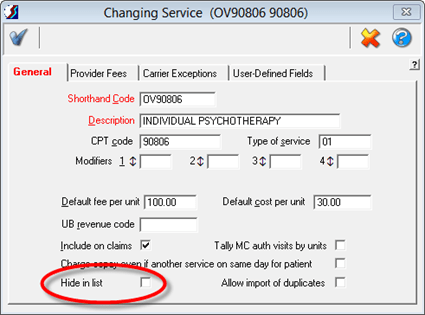
If any of the CPT codes that you use are among those changed for 2013, you must use the new CPT codes for all services rendered on January 1st, 2013 and later. if you need to file or re-file any claims prior to January 1st, 2013, however, you will have to submit them with the old codes. For that reason, you probably should retain your old codes and add new, 2013 versions of those codes. To minimize confusion, you might want to hide the old service code entries as soon as you finished entering and submitting claims for 2012 visits. To hide an item, just check the Hide in list option in the lower left corner of the Service window:


image

How do I enter a new service code?

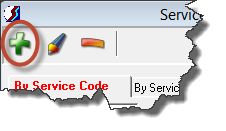
If you are entering a brand new code that is not replacing one you already have, then you should enter it manually by going to Lookups > Services. and then clicking the Add (green “plus”) icon.


SNAGHTML55e06cf


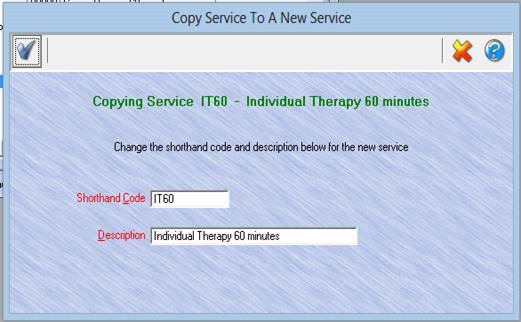
Enter the shorthand code and the description. Remember that the shorthand code and description must be unique, so you cannot use the same shorthand code or description as your old code. If you want to use that code or description for the new service item, you must first change the code and/or description in the old one. If either code or description is exactly the same as an existing entry (whether visible or hidden), an error will prevent you from saving your new entry.

If you are creating a 2013 version of an existing code, especially if the old code has several provider/provider type fees and/or carrier exceptions that you want to use on with the new code:

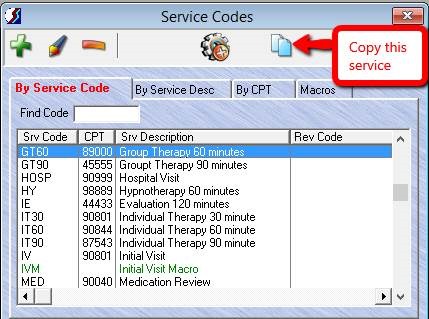
  1. Highlight the existing code code in the list.
  2. Click the “Copy” icon in the toolbar at the top of the window.
    clip_image006
  3. A window will open, prompting you for a new shorthand code and description. Make sure you replace or change the old shorthand code and description
    in some way.
    clip_image008
  4. Click on the Blue Check icon to save.

How do I enter “Add-On” codes?

Beginning in 2013, certain types of services require the addition of Add-On codes to provide insurance payors with more detailed information about the service rendered. These Add-On codes are entered as regular service codes.

For example, let’s say that you see a client for “Psychotherapy for 45 minutes with Interactive Complexity”. Prior to January 2013, you would have created a single charge entry, using the service code in your list that designates 90812 as the CPT code. After January 1st, 2013, you would use 90834, which indicates “Psychotherapy 45 minutes”, and a second charge entry for 90785 for “Interactive Complexity”. So prior to January you would have entered one charge for this client with the CPT code 90812. After January 2013 you have to enter two services: one with 90834 and one 90875. Each code has an assigned fee, make sure you verify with your payers to get that information. If you must file the additional code with a fee of zero, then you must be sure to assign the service code to a Service Category (Lookups > Service Categories). If needed, just create a new category which you can name “Zero Fee” or something of the sort, and assign your new Add-On service to that category. OM will always include “include on claims” services that are part of a Service Category on your claims, even if there is no fee for the service. For more information, see Printing Claim Detail Lines When Fee Is Zero.

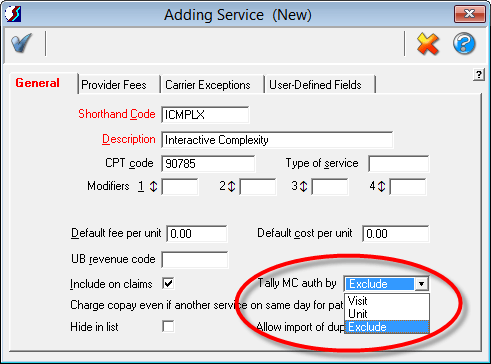
The use of Add-On codes can have the unintended consequence of causing your authorization visit tallies to be incorrect. Both the main and Add-On codes will each be counted, so a single actual visit will reduce SOS’s count of remaining visits by two instead of just one. In the January 31, 2013 update a change was made to the Tally MC Auths by the option on the Service form (Lookups > Services) so that you can now select “Exclude” rather than the prior options of “Visits” and “Units”:

If your practice requires the use of Add-On codes like the one above, you will have to create at least two charge entries for the same date of service. In SOS, the fastest and easiest way to enter two or more related services is through the use of Service Macros.

What is a service macro and how are they entered in OM?

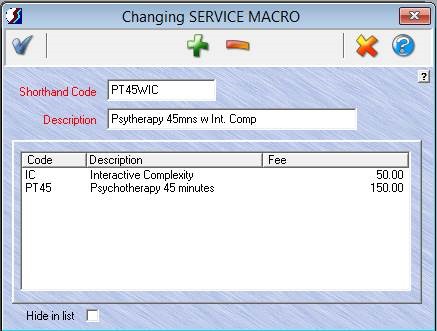
If some of these code combinations will be used frequently in your practice, you will want to use an SOS service macro to make your data entry faster. A service macro is used like a regular service code, but when you save a charge entry in which a macro code is used, SOS will expand it, creating two or more charge entries for you – one for each of the codes that the macro contains. Returning to our example above, we want to enter both a 90834 and a 90735 to describe the service that was rendered, so we will first create a macro that contains both of those service codes.

To enter a Macro:

  1. Go to Lookups > Services > Add a Macro(the gear with plus sign icon).clip_image010
  2. Once you click Add a Macro, a window will open. Enter a shorthand code and a description, such as “Psychotherapy 45 minutes and Interactive Complexity”.
  3. Next, click ADD (green “plus” icon) to attach the two service codes that will make up this macro, . Once the two codes are entered it will look like the screen below.
  4. Click Save (blue “check” icon).

Create macros for all the different code combinations that you will be using. Macros will appear in green in your service code list. You can maintain (change or delete) your macros on click the Macro tab of Lookups > Services.

How do I enter a macro charge in the daysheet?

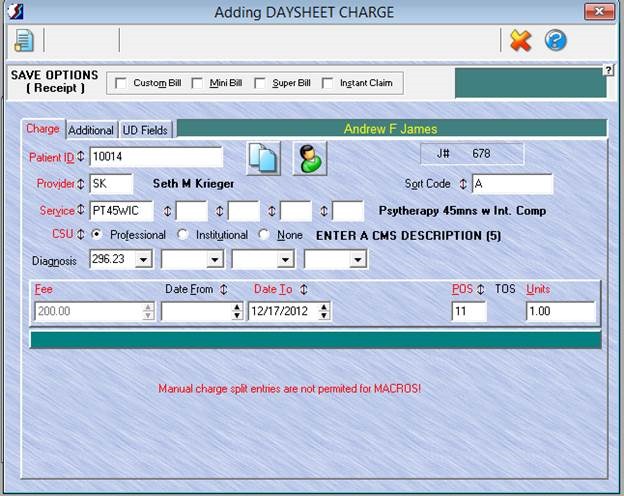
Still using our example, let’s use our new macro to enter a charge in the daysheet. Start your new charge entry normally, completing all fields as you usually do, except for the Service field. For Service select your new macro from the Services lookup list instead of an individual service code. (If you import your appointments from the Appointment Scheduler or from Case Manager, use the macro code for the service when you enter appointments or progress notes.) Additionally, you cannot enter a fee as you normally do. The screen will show the total of the default fees specified in each service contained in the macro. You will have an opportunity to make changes in the next step. Make sure that you have a value in each of the required (red) fields. You will notice that you will not see any splits in the lower part of the window as you usually do.


clip_image012


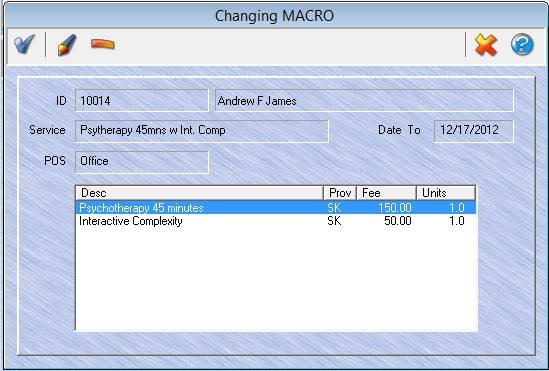
When you click Save (blue “check” icon) on the main charge entry screen, a “Changing MACRO” window will appear, showing the way the macro will be expanded, with one line for each daysheet entry it will create. If you want to change the provider, fee, units, or other values for any of these about-to-be-created charges, this is your opportunity to do so. Just double-click the item you want to change (or highlight the item and click the Change icon (“pencil”) in the toolbar. When you have completed any desired changes, proceed by clicking Save (the “check” icon).


clip_image014


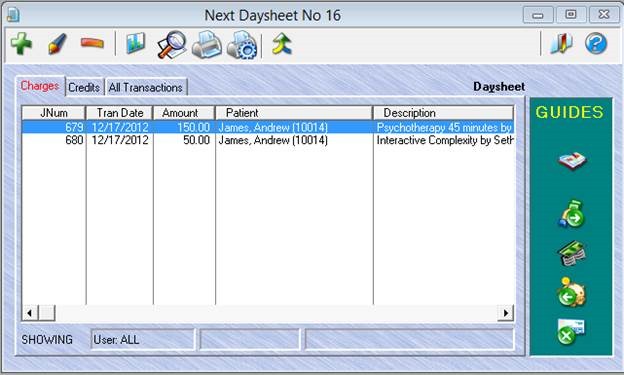
Below you can see the result: one charge for 90834 and another for 90735.


clip_image016