Age, Gender, Primary Provider, and Number of Visits by Patient

We need some basic demographics, along with primary provider and number of non-zero visits during a specified date range.

This is a pretty basic query, but it does include a subquery to provide the number of visits.

SELECT 
  a.lastname+', '+a.firstname+' '+a.id AS "Patient Name/ID",
  COALESCE(b.provcode,'') AS "Provider",
  (SELECT COUNT(*) 
   FROM sos.journal jou JOIN sos.jcharges chg 
   WHERE jou.ptnum = a.ptnum 
     AND jou.trandate BETWEEN '2000-01-01' AND '2016-12-31'
     AND jou.amount > 0) AS "# of Visits",
  sos.AGEINYEARS(a.DOB,TODAY()) AS "Age",
  a.sex AS "Gender" 
FROM
  sos.patients a 
  LEFT OUTER JOIN sos.providers b ON a.providernum = b.providernum
  WHERE "# of Visits" > 0
ORDER BY 
  "Patient Name/ID"

Aging by Patient and Service Code

All we need is patient AR (same as currently reported) broken down by service code within each patient’s balance.  As an example, if patient X has $18,000 of RTC gross charges and $10,000 of PHP gross charges I want to see those two amounts broken out (separate line items) that then roll up into total AR of $28,000. 

We can use a GROUP BY with the ROLLUP option to produce a query that provides exactly what you need. The hard lifting is done by an existing database view that calculates the aging. The query just picks the needed aging values from that view and groups them by the desired patient and service code values. Remember that you read “NULL” in a ROLLUP query as “All”. When you see a line that starts with a patient name, and the next column (Service Code) reads “NULL”, the aging values that follow represent the totals for all service codes. Note that this total line will precede the breakdown by service for each patient.

SELECT
(h.lastname+', '+h.firstname+' / '+h.id) AS "patient",
f.srvcode AS "service code",
SUM(a.bal) AS "totbalance",
SUM(a."current") AS "currentbal",
SUM(a."31-60 days") AS "31to60",
SUM(a."61-90 days") AS "61to90",
SUM(a."91-120 days") AS "91to120",
SUM(a."121-150 days") AS "121to150",
SUM(a."151-180 days") AS "151to180",
SUM(a."over 180") AS "Over180"
FROM
sos.v_chsaging a
JOIN sos.jcharges b on a.jnum = b.jnum
JOIN sos.journal c on b.jnum = c.jnum
JOIN sos.providers e on b.providernum = e.providernum
JOIN sos.services f on b.servicenum = f.servicenum
LEFT OUTER JOIN sos.lookups g on c.sortcode = g.lunum
JOIN sos.patients h ON c.ptnum = h.ptnum
JOIN sos.ptpayors i ON a.ptpayornum = i.ptpayornum
JOIN sos.payors j ON i.payornum = j.payornum
WHERE
a.chgsplbal > 0
GROUP BY ROLLUP ("patient","service code")
ORDER BY "patient","service code"

List Old Patients Who Can Be Legally Purged/Deleted

*** Note: It is not possible to delete patients from within SOS unless there are no significant records (such as financial transactions or progress notes) associated with them. Contact support for information and recommended procedures for backing up and purging old accounts.

A data breach involving patient information can be very costly to remediate. As a result an organization may want to identify and remove patient records from the database as soon as the law allows (often seven years after the last service was rendered).

The following query identifies accounts that meet the following conditions:
1. If the patient was 17 or younger when treatment ended, then records must be retained until 7 years after the patient turned 18.
2. If the patient was 18 or older when treatment ended, then records must be retained at least 7 years after treatment ended.

Adjust the formula values if the record retention period is more than 7 years in your jurisdiction and/or the age of majority is not 18. Also note that “last date of service” is defined here as the last date of service where a fee was charged (even if 100% adjusted off). The query will not work if the last service rendered was entered with a fee of $0.

SELECT 
  b.Lastname AS "Last Name",
  b.Firstname AS "First Name",
  b.ID,
  b.ptnum, 
  b.dob AS "Date of Birth",
  DATE(DATEADD(year,18,b.dob)) AS "18th Birthday",
  a.lfeedate AS "Last Date of Service",
  DATE (CASE WHEN "Last Date of Service" < "18th Birthday" 
        THEN DATEADD(year,7,"18th Birthday") 
        ELSE DATEADD(year,7,"Last Date of Service") 
        END CASE) AS "Keep Records Until" 
FROM 
  sos.ptvars a 
  JOIN sos.patients b ON a.ptnum=b.ptnum 
WHERE 
  b.flag BETWEEN 0 and 1 AND 
  b.dob IS NOT NULL AND 
  "Last Date of Service" IS NOT NULL 
  AND licnum > 100
ORDER BY "Last Name", "First Name", b.ID

List of Clients Who Turned 18 While in Treatment

​I would like to generate a list of clients who turned 18 while in treatment with us?


This is actually a pretty simple query. You would just have to identify everyone who was younger than 18 on their intake date, and older than 17 before being discharged.

SELECT
  lastname  AS "Last Name",
  firstname AS "First Name",
  id,
  intakedate,
  dischargedate
FROM
  sos.patients
WHERE
  sos.AGEINYEARS(dob,intakedate) < 18 AND sos.AGEINYEARS(dob,COALESCE(dischargedate,today())) > 17
ORDER BY 
  lastname,firstname, id

Queries How-To (SOS 2016)

The following instructions are specifically for SOS Release 2016.

  1. First, it is necessary to create a user account in the Admin Module (Users and Passwords) that has query rights. Once at the User List, click the Query Users tab and add a new account. Keep in mind that although Query Users cannot change any data in the database, they do have sufficient rights to see most everything stored in it. In addition, their rights would allow them to export virtually all your patient data. ONLY create Query User accounts for staff who are have your absolute trust! In addition, do not use a super-user account for routine data queries! Using super-user accounts for queries could result in accidentally making disastrous changes to the database. Instead, create a separate, more limited, Query User account for super-users who want to query data in the database.
  2. Launch the provided query utility by doing Start > Programs > SOS Applications > DBISQL. (An alternate, somewhat less user-friendly version can be launched by Start > Programs > SOS Applications > DBISQLC.)
  3. When prompted, type your Query User ID and password (remember that passwords are case-sensitive) in the appropriate fields on the LOGIN tab, then next to ODBC Data Source select or type “SOSDATA” and click OK.
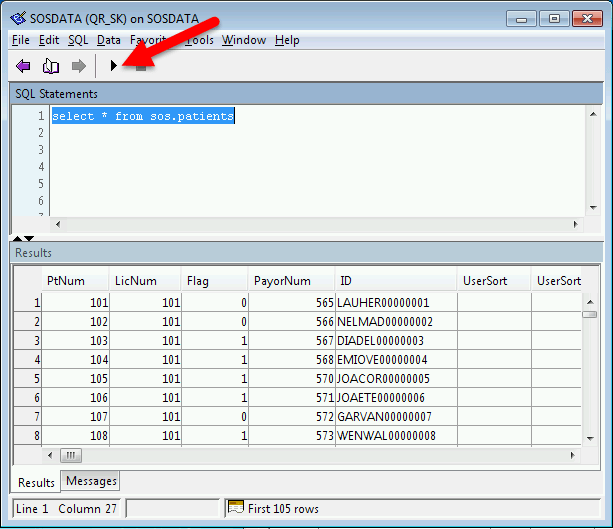
  4. A screen with multiple windows will open. Type your query in the Command (DBISQLC) or SQL Statements (DBISQL) window and click the Execute button (or press <F9> in either version).

query

Using the DBISQL version, use Data > Export to save your results in a file. In either version you can add a line to query to do the same. Add a semicolon, then an OUTPUT statement to the query. The following simple query creates a list of patients along with their email addresses and saves it in a “web page” file in the SOS folder called “pt-emails.html”. This HTML file can be viewed in your web browser, or opened, manipulated, and printed using Microsoft Excel:

SELECT lastname, firstname, email
FROM sos.rv_patients
ORDER BY lastname, firstname
; OUTPUT TO c:\sos\pt-emails.html FORMAT HTML


You are not limited to HTML output, by the way. In the example above, the results are output in HTML format because of the keyword HTML after FORMAT. By changing the keyword, you can choose from an assortment of output file formats. Among the formats available for your query results are the following:

Format Suggested filename extension (type) Keyword Comments
Plain text TXT TEXT The output is a TEXT format file with one row per line in the file. All values are separated by commas, and strings are enclosed in apostrophes (single quotes).
The delimiter and quote strings can be changed using the DELIMITED BY and QUOTE clauses. If ALL is specified in the QUOTE clause, all values (not just strings) are quoted.TEXT is the default output type. This output format used to be called ASCII in previous versions of DBISQL.
Fixed width columns TXT FIXED The output is fixed format with each column having a fixed width. The width for each
column can be specified using the COLUMN WIDTHS clause. No column headings are output in this format.
Web page HTM or HTML HTML Open with your web browser. Also can be loaded in Excel and some other spreadsheet applications.
XML web browser format XML XML Some programs and systems can import and/or process data in XML format.

Note that you can leave off the OUTPUT statement entirely and export using the menu DATA > EXPORT at the top of DBISQL. HTML is still the suggested format, however. You can display it in your browser by double-clicking, or open and manipulate the file containing the result set using Excel.

You can save this query with a name by clicking File > Save and run it whenever you want by opening DBISQLC or DBISQL and clicking File > Open to recall it. By convention, queries like this are given names ending in SQL, like EMAILS.SQL, for example. I would suggest that you save it in your SOS folder so you don’t lose it. If you really want to get fancy, you can create a shortcut on your desktop to run your query with one double click (plus typing in your ID, etc. when prompted):

C:\SOS\SA\bin32\DBISQLC  C:\SOS\EMAILS.SQL
or
C:\SOS\SA\bin32\DBISQL  C:\SOS\EMAILS.SQL

Documents you may find helpful include the rather dated, but still relevant, annotated data dictionary: https://www.sosoft.com/files/downloads/sosddct.pdf

and a set of entity diagrams showing links among tables for the most commonly used data: https://www.sosoft.com/files/downloads/sosdpics.pdf

It is most important that you review the final chapter (Accessing SOS Data from Other Programs) in sostech.pdf, located in your SOS folder. This chapter explains the basics of the database organization. You will be lost in doing anything beyond the simplest queries without that foundation.