Scheduler Frequently Asked Questions (FAQ)

Why are some of my appointments not imported to the Daysheet while others are?

In order for an appointment to be imported, it must be set to an appointment type that is importable. The Appointment Type example below shows a type called “Office Meeting”. Notice that the Import to Daysheet option is not checked. Providers want to create appointments in their schedules for meetings, but these are not billable appointments, so you don’t want to generate a charge entry in the Daysheet, and you don’t want to be forced to select an unnecessary Billing Profile for these appointments. Daysheet import includes only appointment types with the Import to Daysheet option checked. In addition, the Billing Profile field only appears on the Appointment entry form only if you select an appointment type with the Import to Daysheet option checked.


To create or modify your Appointment Type selections, go to Scheduler Lookups > Appointment Types in the main Navigation bar.


Why is Scheduler not showing in the Navigation bar or the View > Navigation menu.

If you normally see the Scheduler selection in the Navigation bar and menu, then it is possible that the maximum number of users are currently using that feature. A user with Administrator rights can check the user list by navigating to Admin > Users, and, if necessary, log out an inactive user.

If this issue occurs frequently, you may want to contact SOS to discuss the cost of increasing the user limit for the Scheduler feature.

How do I change which providers appear in the Scheduler views?

Use the Filter Providers button in the top toolbar to select which providers you want to see. Here is a video showing this feature:

How to select providers to appear in the SOS G5 Scheduler views.

Why don’t I see any providers in the scheduler? Why don’t I see all the providers in the scheduler?

First, see if the Provider Filter is the problem (see previous question).

If adjusting the filter does not resolve the issue, or the list of providers shown in the provider filter list does not show the provider you want to see, then it is likely that you have not been granted permission to view the schedules of the provider or providers in question. In either case, you will have to request permission from one of your organization’s security administrators, who will be able to do one of the following:

  • Add your user ID on the Scheduler tab of each Provider, or
  • Add each provider on the Scheduler tab of your User configuration. Adjusting these User settings is done from the Admin menu in the Navigation Bar.

Whether the change is made from the Provider’s Scheduler Tab, or the User’s Scheduler tab, the result will be the same. The adjustment should result in the providers appearing in the scheduler for your user login.

Is there a quick way to set an appointment’s status to “Kept”?

Sure. Simply right-click the desired appointment in the grid and select Kept. If you mark an appointment Kept accidentally, you can open up the appointment and reset the Appointment Status to “Active” or whatever status is appropriate.

Is there a way to have more than one provider on an appointment?

There sure is! In the lower left corner of the appointment is a list panel titled Providers. To add another provider (or more) to the appointment, either:

  • Right-click and select Link, or…
  • Click the first icon on the Provider List’s tool bar.

Once the tag-list of providers appear, tag one or more by holding the <CTRL> key and clicking to toggle the tag on and off. Once you have tagged the desired provider(s), click OK to add them to the appointment’s list of providers.

How do I block appointments for a period of time?

To indicate a period of time in which appointments should not be created, such as when the office will be closed, or when providers will be on vacation or otherwise unavailable, simply fill that time with an appointment with the Appointment Type set to “Block Appointments”. Changing the Appointment Type to “Block Appointments” will automatically change the Appointment For to “Subject” instead of “Patient” or “Group”.

If the period you want to block extends over multiple days, create a block for the entire first day, then use the Replicate feature to copy that appointment to the desired number of subsequent days. As shown below, set the Number of Appointments to Make to the desired additional days to block, and the Number of Days Between each Appointment to “1”.

Changing the Scheduler View

There are several Scheduler views available to you in the SOS G5 Scheduler. Several of these should be familiar to you if you have ever used the calendar feature in Microsoft Outlook or Google’s Calendar App, with one important difference: you can view the appointments for multiple providers at the same time. In the sample screen shots just below, the displays show five providers:

  • Day View
  • Work Week View
  • Week View
    (days across the top and providers down the left side)
  • Month View
    (days across the top and providers down the left side)
  • Agenda View
    Chronological list of appointments. To limit the providers shown in the list, select desired providers using the Provider Filter before switching to the Agenda view. This view is similar to the Appointments for a Period report, but the report is grouped differently and contains far more detail.
  • Selected Date Range highlighted in the mini-month calendars. Highlight the dates you want to view in the right side-panel to display that date range in the Appointment grid.

How to Change the View

To change from one appointment view to another, right-click anywhere in the current appointment view, move your mouse to (or click) Change View To, then click the desired view.

How to Correct Payroll Errors

Once the payroll has been processed, you cannot undo it. If you notice an error afterwards, however, you can fix any credits that caused a problem and SOS will create correcting entries in the current payroll report.

Let’s say, for example, that a $50 payment from patient Jimmy Johnson is applied to a service rendered by Dr. Smith. The credit entry is saved, the daysheet is posted, and a line indicating a payment for Dr. Smith appears in the pending payroll list. At the end of the payroll period, the payroll is processed and checks are distributed to the providers in accordance with the report.

In reviewing the payroll report, Dr. Jones notices that it does not include a payment from Jimmy Johnson, even though he is sure that one was made. The front office investigates and finds that the $50 payment was applied in error to Dr. Smith’s service rather than to Dr. Jones’ service.

The correction is pretty straightforward:

  1. Open the credit in which Jimmy’s payment was recorded, and located the split at the bottom showing that it was applied to the service by Dr. Smith.
  2. Modify that split, changing the amount paid in the split from $50 to $0 and save it. The credit will now show that $50 now shows as unapplied.
  3. Find the appropriate service by Dr. Jones among the outstanding charges, and apply the now available $50 to it.
  4. Save the credit entry.

After making and saving the change, take a look at the pending payroll list. You will see a line subtracting a payment from Dr. Smith, and another line adding a payment for Dr. Jones. When the payroll is run and checks are generated at the end of the period, Dr. Smith will receive less in his check to make up for the previous over-payment, and Dr. Jones will receive the back pay owed to him.

The bottom line is that you can just go ahead and fix errors in the patient ledgers and SOS will automatically create the appropriate payroll adjustments in the current pending payroll list.

Datasets, and Switching from One Dataset to Another

Datasets, also known as sublicenses, are used to segregate data for two or more business entities within the same SOS database. From the user’s perspective, each dataset has its own list of patients, providers, suppliers, and referral sources. Other lists, such as service codes, insurance carriers, diagnoses, and so on, are common to all datasets.

Note: Adding a data set requires that you obtain a license key for the specific dataset name from SOS. There is a small additional charge to cover the administrative costs of creating and tracking the additional dataset. You will receive new licensing information, which must be entered into your system to enable any new data sets.

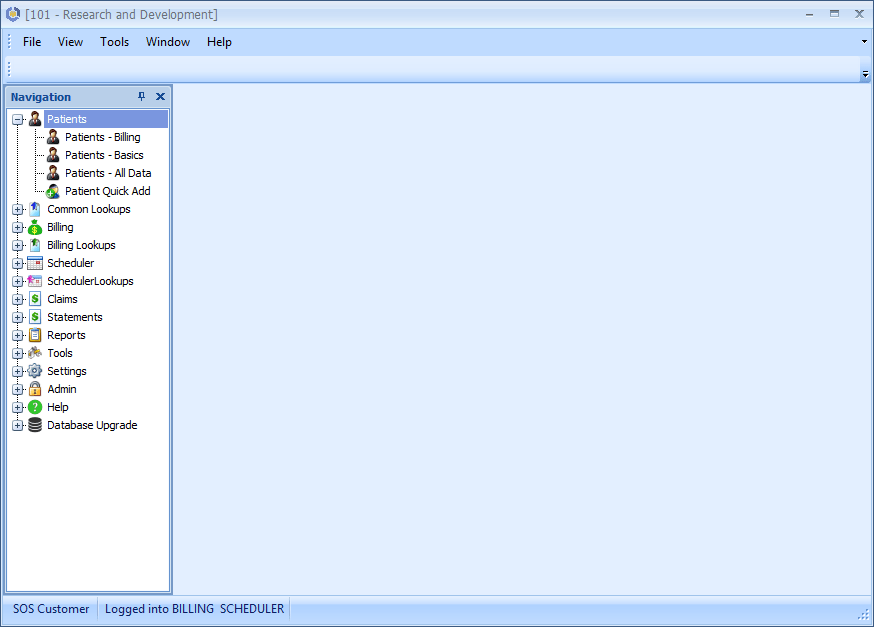
To change from one dataset to another, close all SOS tabs, so that all you see is the main OM screen and Navigation bar, as shown below:

Select Tools > Change to Another Dataset.

In this form you can select the desired dataset from a drop-list. In addition, after choosing a dataset, you can make it the default dataset. In the future, it will be automatically opened for you as soon as you log into SOS.

SOS G5 Backup and Recovery

Most SOS G5 organizations will be using Microsoft SQL Server to store their data. This database engine is available in a wide range of versions. Most SOS users probably will be using the free SQL Server Express edition, SQL Server Standard, or perhaps, SQL Server Enterprise. All three of these editions share the same core functionality and may be managed using Microsoft’s user interface known as SQL Server Management Studio (SSMS). Assuming that you have the rights to do so, you will be able to use SSMS to manage the database, including backing up and restoring the SOS G5 database. Again assuming that you have the necessary rights, if you are on a network, you will be able use SMSS to do these tasks from any workstation.

Typically, when you install SQL Server on your computer or server, you will also install a copy of SSMS. If you cannot locate a copy, want a copy on another computer, or want to update a copy you previously installed, you can download the installer for the current SSMS software at this Microsoft page: Download SQL Server Management Studio (SSMS).

Using SSMS to create a full backup of your database manually

Once you have installed your SOS G5 software and you have begun to enter data or have imported data from the previous version of SOS, you should backup that data as soon as you have the opportunity. As a start, let’s use SSMS to create a manual backup. We will then make a copy on external media as well.

  • Start by opening SQL Server Management Studio (SSMS).

Once you have logged in, click the plus to the left of “Databases” to expand that node. Right-click the SOSSuite database, then click “Tasks”, then click “Back Up…”.

The dialog for the backup task includes three panels. Go from one to the other using the navigation panel on the left:


Automating database backups using SQLCMD and Windows Scheduled Tasks

Thankfully, it is not necessary to manually go through the steps above every day (or more often). Instead, you can use Windows’ Task Scheduler to automatically run commands to create backups of the database and the transaction log in any desired location on the computer running SQL Server. For example, you could put the following two command lines in a file named BACKUP_SOSSUITE.CMD, and configure Task Scheduler to run this CMD file every night at 1:00 AM. Here are the two commands. The portions that would have to be changed to match your particular installation are in bold.

(all on one line) SQLCMD -E -S .\SQLEXPRESS -Q “BACKUP DATABASE[SOSSUITE] TO DISK=’C:\BACKUPS\SOSSUITE-DATABASE.BAK‘” > C:\BACKUPS\BackupDatabaseResults.txt

(all on one line) SQLCMD -E -S .\SQLEXPRESS -Q “BACKUP LOG[SOSSUITE] TO DISK=’C:\BACKUPS\SOSSUITE-TRANLOG.BAK‘” > C:\BACKUPS\BackupDBLogResults.txt

In this example, .SQLEXPRESS is the name of the SQL Server instance that is running the SOSSuite database. After DISK= is the desired full path and filename of the database or transaction log backup file, and after “>” is the name of the file that is used to capture the results of each of the commands so that you can check to be sure that the backups ran successfully.

Creation of these BAK files IS NOT A SUFFICIENT BACKUP. By definition, these files will be created on a local drive, perhaps even the same drive as your database is running. In addition, every time the commands are run, these files will be replaced by the latest ones. That means that an equipment failure, fire, or theft could wipe out both your data and your only backup!

For that reason it is essential that you include these BAK files in your daily computer or server backups to external media, using third-party backup software such as NovaStor’s NovaBackup or Cloudberry Lab’s Cloudberry Backup products, among many others. High-end server backup software often includes the ability to backup SQL Server databases directly, without the intermediate steps described above, which would certainly be an excellent option. Your backup software will have options to encrypt your backups, which is absolutely essential, and to compress them to minimize the amount of space consumed on your backup media.

See also:

https://docs.microsoft.com/en-us/sql/t-sql/statements/backup-transact-sql?view=sql-server-2017#syntax