Entering a New Patient, Step 4: Contacts

You can enter an unlimited number of Contacts, such as family members and other treating healthcare providers, in the Contacts panel in the lower right corner of the Main tab of the Patient form.

To add a new contact to the list, click the New icon, or click anywhere in the Contacts panel and press <CTRL><N>.

Last Name on the Contact form is a required field. SOS recommends that you specify a Contact Type from the associated lookup list. There is a New button at the bottom of that list if the type you need is not already on the list.

At the bottom of the Contact form is a Communications panel in which you can add as many phone numbers, mailing addresses, and email addresses as you like.

Previous: Entering a New Patient, Step 3: Patient Communications

Related Articles:
Entering a New Patient, Step 1
Entering a New Patient, Step 2: Basic Demographic Data Fields

Managing Patient Insurance Payers
Managing Patient Non-Insurance Payers
Managing Patient Care Episodes
Managing Patient Posted Charge Entries
Managing Patient Posted Payments and Adjustments
Recording Patient Psycho-Social History
Managing Billing and Clinical Documents for a Patient
Creating a Patient Treatment Plan
Recording Progress Notes
Recording Prescriptions
Recording Allergies
What Are User-Defined Fields?

Entering a New Patient, Step 2: Basic Demographic Data Fields

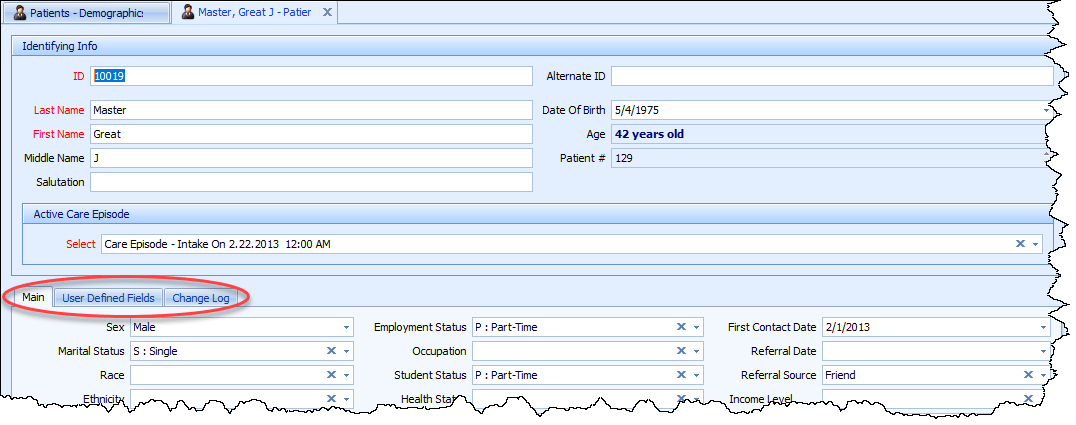
You can enter the basic patient demographics from any of the patient lists: Patients (All Tabs), Patients – Billing, Patients – Clinical, or of course, Patients – Demographics.

After opening one of the patient lists, click the “New” icon at the left of the top tool bar.

Just the heading area of the patient form will appear.

The ID field will default to a unique number value, but you can turn that feature off if you would rather manually enter your own alphanumeric identifiers for each patient. In addition, you can specify the range used for the auto-numbered IDs. See Specifying System Options for more details.

Continue through the remaining fields. It is just first and last names that are required, but it is strongly recommended that you specify the patient’s date of birth as well. Note that Age is automatically calculated based on the DOB and the system’s internal Patient # as well as the description of the patient’s initial care episode are both generated automatically. You will be able to change the care episode description after saving this initial data if you choose. (See Managing Patient Care Episodes for details.)

When you are finished, click the Save button on the top toolbar, or use the <CTRL><S> hotkey.

The rest of the Patient Form will immediately appear, so you can continue in the next panel with Sex, Marital Status, Race, and so on. With the exception of Years of Education and Notes, all of these fields have lookup lists to make data entry fast, easy and consistent. Note that these lookup lists include a “New” button in the lower right corner so you can quickly add new selections to these lists as needed.

That brings us to the next step, entering the patient’s address, phone, and email information. See the next article in this series, Entering a New Patient, Step 3: Patient Communications.

Previous: Entering a New Patient, Step 1
Next:
Entering a New Patient, Step 3: Patient Communications

Related Articles:
Entering a New Patient, Step 4: Contacts

Managing Patient Insurance Payers
Managing Patient Non-Insurance Payers
Managing Patient Care Episodes
Managing Patient Posted Charge Entries
Managing Patient Posted Payments and Adjustments
Recording Patient Psycho-Social History
Managing Billing and Clinical Documents for a Patient
Creating a Patient Treatment Plan
Recording Progress Notes
Recording Prescriptions
Recording Allergies
What Are User-Defined Fields?

Entering a New Patient, Step 1: Open the Appropriate Patient Form


Note: This article describes the complete, detailed method used to enter a new patient, including all patient details (for example: unlimited street addresses, email addresses, patient contacts, payers and insurance policies, plus much, much more). There is an alternate “Quick Add” feature that allows you to rapidly initialize a patient record with the basic data on a single screen. You can then use the full interface to enter additional information at a later time. See Using Quick Add to Rapidly Create a New Patient Account for more information.


All information related to patients can be entered and reviewed from each patient’s main screen. To view, modify or add a new patient with access to all patient data, go to Patients in the navigation pane on the left of your screen, then select Patients which is the gateway to the complete Patient screen, containing all data tabs.

There are also more specialized patient lists that show just the basic demographics (Patients – Demographics), demographics plus billing-related data (Patients – Billing), or demographics plus clinical records (Patients – Clinical). The patient form accessed from each of these lists calls up a different variation of the entry screen, tailored to different types of users, with different data entry needs. The top of the patient screens are all the same, but differences are reflected in the tabbed section at the bottom:

Patient (All Tabs):

Patient – Billing:

Patient – Clinical:

Patient – Demographics:

Next: Entering a New Patient, Step 2: Basic Demographic Data Fields

Related:
Entering a New Patient, Step 3: Patient Communications
Entering a New Patient, Step 4: Contacts
Managing Patient Insurance Payers
Managing Patient Non-Insurance Payers
Managing Patient Care Episodes
Managing Patient Posted Charge Entries
Managing Patient Posted Payments and Adjustments
Recording Patient Psycho-Social History
Managing Billing and Clinical Documents for a Patient
Creating a Patient Treatment Plan
Recording Progress Notes
Recording Prescriptions
Recording Allergies
What Are User-Defined Fields?

SOS G5 Guides

The SOS G5 Guides site consists of an ever-growing set of articles, including tutorials, explanations, and videos, meant to help you get the most out of your SOS G5 software.

Please use the Search box in the sidebar to the right to locate articles related to any aspect of the software, specifying the “G5” Category to narrow your search results. If you cannot find helpful material, please let us know by phoning (352-242-9100) or by emailing support@sosoft.com.

Available articles, by Title…

Transferring or Changing Payment Responsibility for a Charge Entry

Transfers Start with an Accurate Payer (Charge Splits) List on the Charge

At the bottom of every Charge entry, on the first tab (“Charge”) is a short list that includes a line for every configured insurance and non-insurance payer that is, or was, available for the patient on the date of service. If the patient has insurance coverage and is seen over a period of time, the payers shown in the list are likely to change from time to time. The following screenshot shows a Charge, with the payer list at the bottom. This list is created at the time that the charge is initially entered, but it can be refreshed at any time to reflect relevant payers added after the Charge itself.

Insurance payers are included in the list based on the coverage dates specified in each patient’s insurance policies. Policies are found in the patient screen:

If you see more or less insurance payers in the charge split list than you think you should, it is probable that:

Manual Transfers of Payer Responsibility

In most cases, you will have some idea of how the responsibility for payment should be divided up among the patient’s payers. To adjust the amounts expected from each payer…

  1. Open the Charge entry from the Daysheet or, if already posted, from the patient’s ledger.
  2. Take note of the total fee amount in the upper portion of the Charge screen.
  3. By definition, a transfer means that you will be reducing the amount due from one payer and increasing the amount due from another payer by the same amount. In the payer list at the bottom of the Charge, open each of the payers involved one by one, change the Amount, and save. Be sure that the sum of the split amounts still matches the original total fee amount. If they do not match, the fee amount will change to match the total of the splits when you save the Charge.

Automatic Transfers

Under certain conditions, SOS will automatically make transfers for you, adjusting amounts expected from payers based on a Credit entry that you make. See, for example, Handling Larger than Expected Payments: The Auto-Transfer Feature.


See related article:

How to Refresh the Payer List on a Charge Entry